Behavior Clip Chart
Type your levels, pick wall or desk size and print the behavior clip chart; the page also explains how it is used and the criticism of public clip charts.
A behavior clip chart is a printable ladder of behavior levels, with a clip spot beside each level. This tool builds one for you: type your levels, choose a size and a start level, and print the result. It runs in your browser, is free, and needs no sign-up.
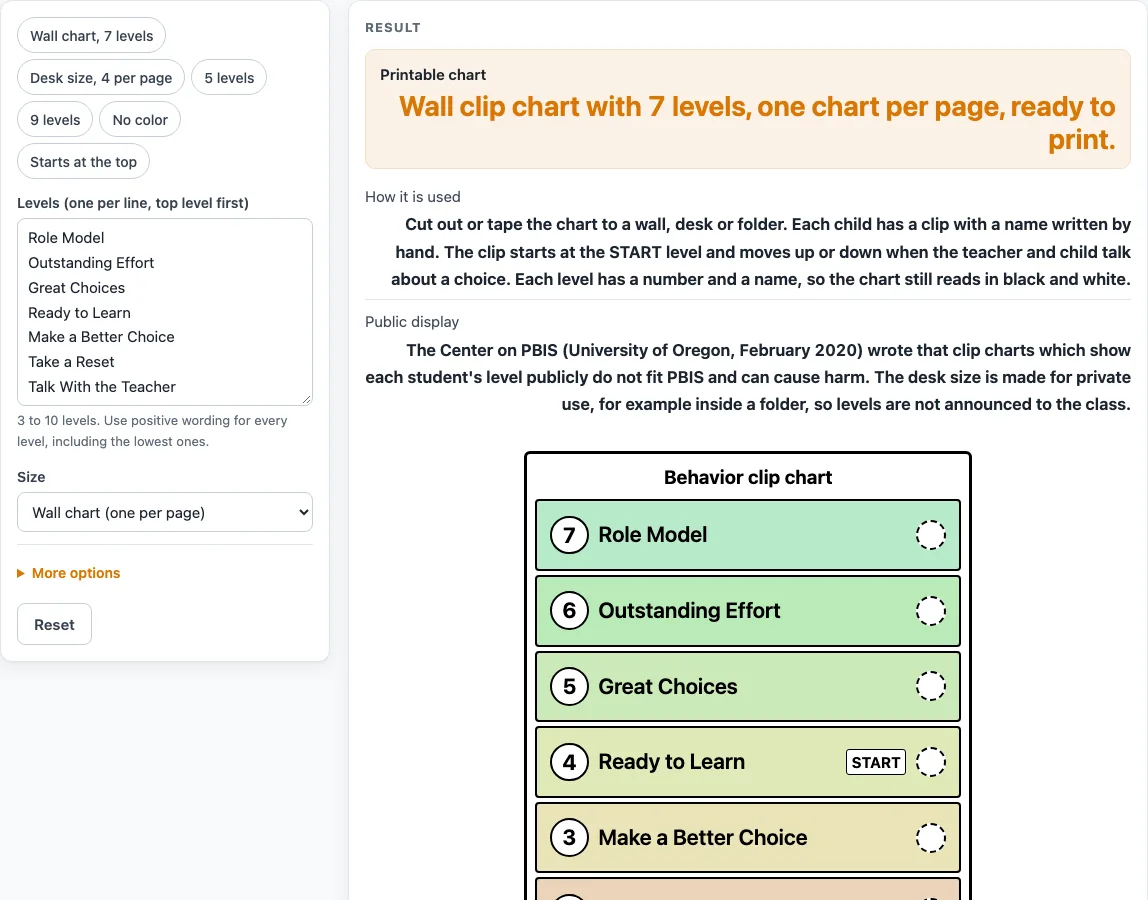
Each level appears as a bordered row with a number, and the highest level sits at the top. One level carries a START tag, and a dashed circle marks where a clip goes. The default chart has seven levels, from Role Model at the top to Talk With the Teacher at the bottom, and you can replace these names with your own. You can print one large wall chart per page or four smaller desk size ladders per page. Nothing is uploaded, and the tool has no field for children’s names, so clips are labeled by hand.
How to use the Behavior Clip Chart
- Type your levels into “Levels (one per line, top level first)”. Enter between 3 and 10 lines. The default list has seven levels: Role Model, Outstanding Effort, Great Choices, Ready to Learn, Make a Better Choice, Take a Reset, and Talk With the Teacher. More than 10 levels are cut with a warning, and fewer than 3 gives an error.
- Choose a “Size”: “Wall chart (one per page)” gives one ladder per page with large text. “Desk size (four per page)” gives four small ladders in a 2 x 2 grid.
- Under the extra settings, pick the “Start-of-day level”: “Middle level” (the default), “Top level” or “No start marker”.
- Keep “Color the levels” on for a light fill that runs from green at the top to red at the bottom, or switch it off.
- Type a “Chart title”, or leave the default, “Behavior clip chart”.
- Check the preview. Confirm that the levels are in the order you want and that the START tag sits where you expect.
- Print the chart with “Print / save as PDF”. There is no CSV download, because the result is a picture of a ladder rather than a table.
- After printing, write each child’s name by hand on a clip.
The presets fill in the options for you: “Wall chart, 7 levels”, “Desk size, 4 per page”, “5 levels”, “9 levels”, “No color” and “Starts at the top”. Pick one to start, then adjust the level list to fit your own names.
What does the START level do on a behavior clip chart?
The START level is the level where a child’s clip begins the day. By default, the tool places it on the middle level: the line halfway down your list, rounding up. With seven levels, that is level 4. You can move the START tag to the top level, or turn the marker off altogether.
The page explains that each child has a clip with a name written by hand. The clip starts at START and moves up or down when the teacher and child talk about a choice. For example, the default gives seven levels numbered 7 down to 1, with START on level 4.
How are the levels numbered and ordered?
The highest number sits at the top, and each level is numbered downward. The first line you type becomes the top level. Because the order follows your list, check the preview before you print to confirm that the top line is the level you intend as the highest.
Each level shows its number and its name, so the chart still reads correctly if a copy is printed in black and white.
Why does the chart use color and numbers together?
Color is on by default. The light fill runs from green at the top to red at the bottom, so the levels step visibly from one end to the other. Color is decorative, though. Every level also has a number and a name, so the chart does not rely on color alone. It prints legibly in black and white, and you can switch it off with “Color the levels” if you prefer a plain sheet.
When should I use the desk size?
The desk size prints four small ladders of the same levels on one page, in a 2 x 2 grid. The page describes it as made for private use, for example inside a folder, so levels are not announced to the class. Use it for a copy that stays with one adult or child, not for a copy displayed to the group.
Worked example: choose “Desk size (four per page)” and type five levels. You get four small ladders of five levels each, with START on level 3. With five levels, the middle is the third line from the top, so the START tag sits there.
What criticism does the behavior clip chart face?
The Center on PBIS (University of Oregon, February 2020) wrote that clip charts that show each student’s level publicly do not fit PBIS and can cause harm. The page states this so you can consider it before you decide how to use the chart. The layout and names are our own design, and the tool does not make a claim about whether any chart works for a given class.
Sources (checked 15 October 2026): pbis.org
Worked examples
| Input | Result |
|---|---|
| 7 levels, Wall chart (one per page) | 1 chart(s) per page |
| 7 levels, Desk size (four per page) | 4 chart(s) per page |
| 5 levels, Wall chart (one per page) | 1 chart(s) per page |
| 9 levels, Wall chart (one per page) | 1 chart(s) per page |
Calculated by the tool above; open it with the same values to see each step.
Frequently asked questions
Is the behavior clip chart free to use?
Yes. The tool is free, runs in your browser, and needs no sign-up. Nothing is uploaded.
How many levels can I include?
Enter between 3 and 10 levels, one per line. The default is seven. More than 10 levels are cut with a warning, and fewer than 3 gives an error.
Can I download my chart as a file?
There is no CSV download, because the result is a picture of a ladder, not a table. Use “Print / save as PDF” to print it or save it as a PDF.
Can I write children’s names on the chart?
The tool has no field for children’s names. Print the chart, then label each clip by hand.
Does the chart need color to be readable?
No. Every level has a number and a name, so the chart prints legibly in black and white. Turn off “Color the levels” for a plain sheet.
Is this an official or recommended system?
No. It is a general-purpose printable template and the design is our own. The Center on PBIS brief linked above is critical of clip charts that show each student’s level publicly, so think about where you will display it.
Related tools
- Behavior Chart: use it when you want a different layout for tracking behavior.
- ABC Behavior Chart: use it when you want to note what happened before and after a behavior.
- Behavior Reflection Sheet (Think Sheet): use it when a child needs to write a reflection after a difficult moment.
- Behavior Contract Template: use it when you want to write down agreed goals and rewards in one place.
- Reward Chart: use it when you want a simple chart for recording rewards.