Classroom Jobs Chart
Type your classroom jobs, choose how many rotations to show, and print the chart with blank name boxes or a set of job cards to cut out.
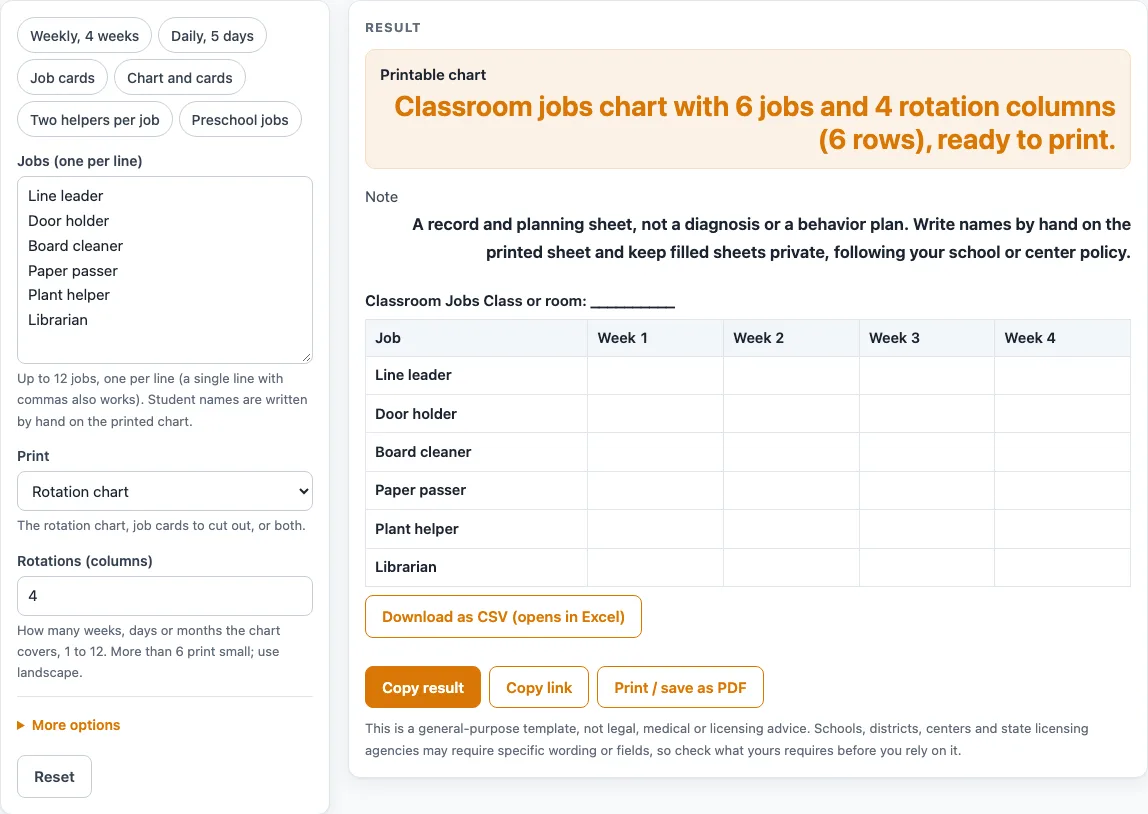
How to use the Classroom Jobs Chart
- Type your jobs in the “Jobs (one per line)” box. You can enter up to 12; extra lines are cut with a warning. A single line with commas, such as “Line leader, Door holder”, also works. The default list is already filled in.
- Optionally open the extra settings and type a room name in “Class or room”. The heading then reads “Classroom Jobs” followed by that name.
- Set “Rotations (columns)” from 1 to 12 (default 4). Choose “Weeks”, “Days” or “Months” in “Rotation period”. With the defaults, the columns read Job, Week 1, Week 2, Week 3 and Week 4.
- Set “Helpers per job” from 1 to 4. Above 1, each job repeats on extra rows, and the job name appears only on the first row.
- Under “Print”, choose “Rotation chart” (default), “Job cards to cut out” or “Chart and cards”.
- Print the sheet and write each student’s name by hand in the blank cells.
Presets fill in the settings for you: “Weekly, 4 weeks”, “Daily, 5 days”, “Job cards”, “Chart and cards”, “Two helpers per job” and “Preschool jobs”. More than 6 rotation columns print small, so print in landscape. Job cards print 3 per row as bordered cells; cut along the lines. Typed header text stays in your browser and appears in the page address, so keep student names out of the heading.
What is a classroom jobs chart used for?
A classroom jobs chart is a simple grid that shows which student has which class job during each rotation period. It makes responsibilities visible at a glance, so students and adults can check the sheet without asking.
How does a rotation chart work?
Each job is a row, and each rotation period is a column. A period can be a week, a day or a month, depending on how often you want roles to change. When a new column starts, you write new names in the cells, which moves each student to a different job.
Why rotate classroom jobs?
Switching jobs regularly lets each child try different roles, according to Edutopia’s article on preschool classroom jobs. The tool itself makes no claims about learning outcomes, so decide for yourself whether rotation suits your class.
How many jobs and helpers should I plan for?
Start with the number of jobs you actually need, up to 12. If several students share one job, raise “Helpers per job” so that each job gets extra rows. Count the blank cells before you print, since each helper needs a name in every period.
When should I use job cards instead of the chart?
The chart is best for a wall display, where everyone can see the whole rotation at once. Choose “Job cards to cut out” when you want a card for each job to hand to a student or place where the job is done. Each card reads the job name followed by “name:” and a blank line, so you write the student’s name on it by hand. “Chart and cards” prints both on the same sheet, with a heading telling you to cut along the lines.
How do I choose the length of a rotation?
Pick the period that matches how often you want roles to change. The “Daily, 5 days” preset gives five day columns, and the default gives four weeks. If you need more than 6 columns, print in landscape so the cells stay big enough to write in.
Sources (checked 15 October 2026): edutopia.org
Worked examples
| Input | Result |
|---|---|
| 6 jobs | 4 rotation columns, 0 cards |
| 6 jobs | 5 rotation columns, 0 cards |
| 6 jobs | 0 rotation columns, 6 cards |
| 8 jobs | 4 rotation columns, 0 cards |
Calculated by the tool above; open it with the same values to see each step.
Frequently asked questions
Can I type student names into the tool?
No. The tool has no name field, so write names by hand on the printed sheet. Keep names out of the class or room heading, because typed header text appears in the page address.
Does the tool save my chart?
The tool stores nothing. Everything runs in your browser, and nothing is uploaded. If you close the page, your typed jobs and settings are not kept by the tool.
Why does my chart print small?
More than 6 rotation columns print small. Reduce the number of rotations, or print in landscape to give the columns more room.
How many jobs can I add?
You can type up to 12 jobs. Any extra lines are cut, and a warning appears. You can also write jobs on one line with commas, which the tool reads as a list.
What happens if I leave the jobs box empty?
If no jobs are typed, the chart shows 8 blank job rows and a warning. Type your own jobs to replace them.
Is this chart approved by my school or district?
This is a general-purpose template and is not legal, medical or licensing advice. Check what your school, district, center or state agency requires before you use the sheet.
Related tools
- Behavior Chart: use it when you want a daily record of behavior on one sheet.
- Reward Chart: use it when you want students to track progress toward a simple reward.
- Behavior Clip Chart: use it when you want students to move a clip up or down during the day.
- Behavior Log: use it when you need a running written record of events.
- Behavior Reflection Sheet: use it when a student needs a written think sheet after an incident.