Emergency Contact Form
Choose how many contacts and pick-up adults you need, then print a blank emergency contact form for a school, class or daycare.
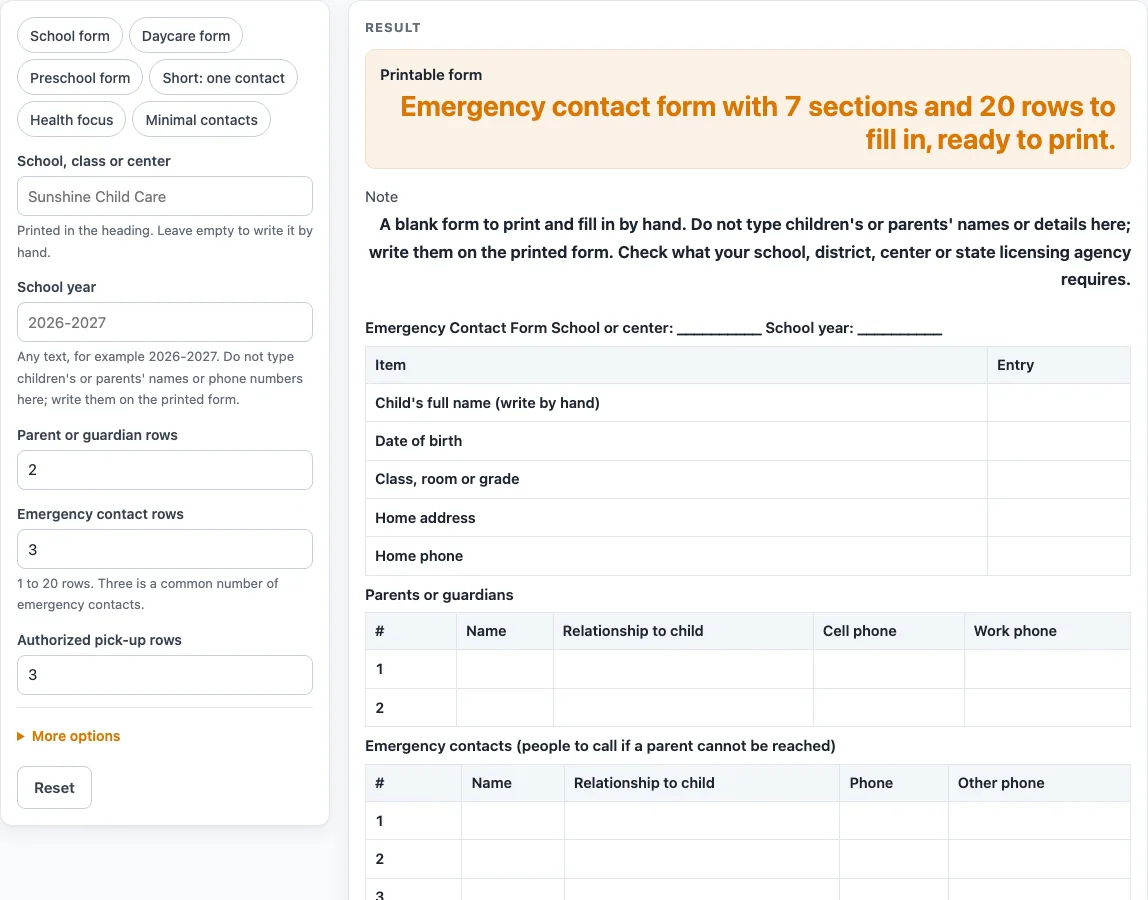
How to use the Emergency Contact Form
- Choose a preset or start from the defaults. The presets are “School form”, “Daycare form”, “Preschool form”, “Short: one contact”, “Health focus” and “Minimal contacts”. The defaults give 7 sections and 20 rows.
- Type the “School, class or center” and the “School year” into the text fields.
- Set the number of rows for each group: “Parent or guardian rows” (default 2), “Emergency contact rows” (default 3) and “Authorized pick-up rows” (default 3). Each value must be from 1 to 20.
- Under the extra settings, add an “Extra note (optional)” if you need one. The note can run up to 12 lines.
- Switch on the optional blocks you need. “Health insurance lines” and “Not allowed to pick up lines” are both off by default.
- Check the row count in the result line. Rows above 20 are cut to 20 with a warning, and 0 or text gives an error.
- Print the sheet. Write the child’s full name, date of birth, class or grade, home address and home phone by hand, then fill in the tables and the signature line.
- To save the tables as a file, select “Download as CSV”.
Typed header text and the optional note lines stay in your browser and are written into the page address. The print view shows only the heading and the bordered tables, in black and white. Tick boxes print as [ ], so they do not depend on colour. The CSV file is made in your browser.
What goes on an emergency contact form?
An emergency contact form gathers the information a school or center may need in a sudden situation, laid out in one place. This tool arranges it in blocks: a child block, three contact tables, a health block and a confirmation line. The field selection and layout are our own design, based on common practice. They are a starting point, not a set that any school, district or licensing body has approved.
The child block has five blank lines: child’s full name (write by hand), date of birth, class or grade, home address and home phone. The tool has no input for these, so they stay off the screen and go on paper.
The contact tables use different columns for different roles. The parent table has Name, Relationship to child, Cell phone and Work phone. The emergency contact table has Name, Relationship to child, Phone and Other phone. The pick-up table has Name, Relationship to child, Phone and an “ID checked (staff)” column, which gives staff a place to tick once they have checked identification. All rows are numbered and blank.
The health block has five lines for allergies, health conditions, medication, doctor or clinic and phone, and preferred hospital. An optional health insurance block asks for company and member or policy number. The lines only hold what you write. The tool does not give medical advice.
The optional pick-up limits block lists anyone who may not pick up the child, with a note to attach the papers the school or center asks for. The final part is a confirmation sentence saying the information is correct and that changes will be reported in writing, followed by a parent or guardian signature line.
How are the rows and sections counted?
Each part of the form contributes a set number of rows, and the total is the number you see on the sheet. The default layout comes to 20 rows: 5 child lines, 2 parent rows, 3 emergency contact rows, 3 pick-up rows, 5 health lines, 1 confirmation line and 1 signature line. That is 5 + 2 + 3 + 3 + 5 + 1 + 1 = 20.
The three counts you control are the parent, contact and pick-up rows. Each can be set from 1 to 20, so raising any of them raises the total. Rows above 20 are cut to 20 with a warning, and 0 or text gives an error. The total is calculated from the numbers you enter.
Presets change the total too. The “Short: one contact” preset comes to 13 rows, and the “Daycare form” preset includes the pick-up limits block, the insurance block and 4 pick-up and 4 contact rows, giving 26 rows in 9 sections.
Worked examples
| Input | Result |
|---|---|
| 20 rows | 7 sections, 20 rows |
| 26 rows | 9 sections, 26 rows |
| 13 rows | 5 sections, 13 rows |
| 8 rows | 3 sections, 8 rows |
| 23 rows | 8 sections, 23 rows |
Calculated by the tool above; open it with the same values to see each step.
Frequently asked questions
Is this emergency contact form free to use?
Yes. The tool runs in your browser, is free, and needs no sign-up. Nothing you enter is uploaded.
Does this form meet school or licensing rules?
No. The field selection is our own choice based on common practice, and this page does not say it meets any school, district or licensing requirement. Check with your school or center about what it needs.
Can I type a child’s name into the tool?
No. There is no input for a child’s or parent’s name or any personal detail. Those lines print blank so you can write them in by hand.
Is my information saved or uploaded?
No information is uploaded. Typed header text and the optional note lines stay in your browser and are written into the page address. The “Download as CSV” button saves the tables as a .csv file made in your browser.
What happens if I enter more than 20 rows?
Rows above 20 are cut to 20, and a warning appears. A value of 0 or text gives an error, so enter a number from 1 to 20 for each row count.
Will the printed form show colour?
The print view is black and white. It shows only the heading and the bordered tables, and tick boxes print as [ ], so the form reads the same without colour.
Related tools
- Attendance Sheet: use it to record who is present each day.
- Daycare Contract Template: use it to draft the terms between a child-care provider and a family.
- Daycare Cost Calculator: use it to work out costs from the numbers you enter.
- Daycare Enrollment Form: use it when you need a blank form for enrolling a child.
- Field Trip Permission Slip: use it to ask families to approve a trip.
- Media Release Form (Sample): use it as a sample when you need a form for permission to use photos or video.
- Nanny Cost vs Daycare Calculator: use it to compare costs from the numbers you enter.
- Parent Contact Log: use it to record calls and messages with families.