Field Trip Permission Slip
Enter the destination, date, times, transport and cost, then print a field trip permission slip with health information and a tear-off return slip.
How to use this field trip permission slip tool
- Choose a preset. Pick “Standard trip slip” for the full form, or “Walking trip” for a walk. The walking preset removes the transportation boxes, sets cost to “No cost”, and sets the meal to “No meal needed”. Other presets: “Paid trip with payment”, “Parent drivers”, “With photo question”, “Short slip”.
- Type the “School, class or center” and the “Destination”.
- Enter the “Trip date”, the “Leaving time”, and “Back at school at”.
- Choose “How we travel”: school bus, walking, parent or volunteer vehicles, public transit, or leave blank to write by hand.
- Enter the “Cost per child”, then choose a “Meal”: no meal needed, bring a sack lunch, or school provides lunch.
- Under more options, type “What to bring or wear” and “Return the slip by”.
- Set “Emergency contact rows”, from 1 to 20 (the default is 2).
- Use the section switches to turn blocks on or off. The health lines, emergency contact table, and chaperone offer are on by default. “Payment lines” and the “Photo and video question” are off.
- Read the letter to families. It names your destination and date, or “the destination listed above” if none is typed.
- Select “Download as CSV” for a .csv file, or “Print / save as PDF”.
The print view shows only the heading and the bordered tables in black and white. Tick boxes print as [ ], so they do not depend on colour. Child and parent name lines print blank for you to complete by hand.
What does a field trip permission slip need to include?
A field trip permission slip gives families the trip details they need before they sign. This tool uses a common layout: a trip details table, a letter, permission and transportation boxes, health and emergency contact blocks, and a return slip. The layout, section choice, and every sentence are our own design, built from common practice. No outside form was copied.
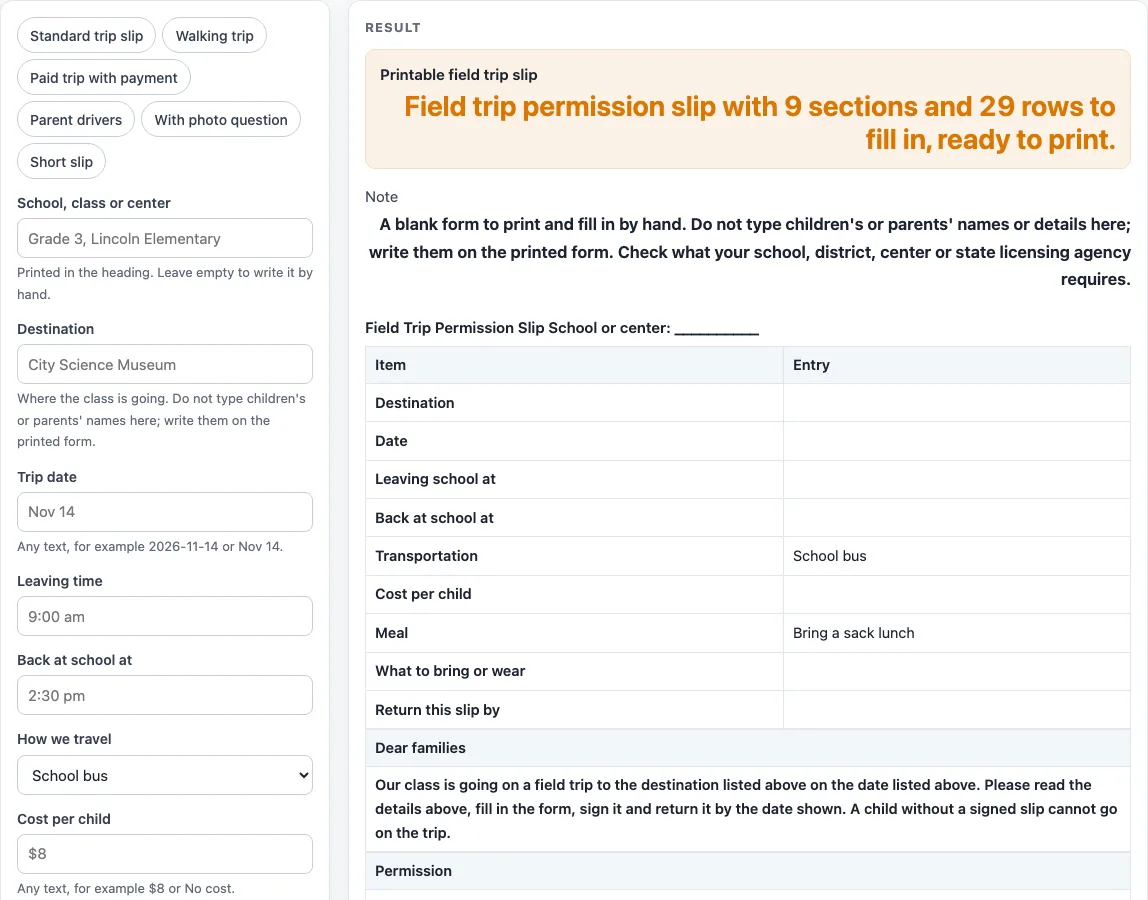
The trip details table has 9 lines: destination, date, leaving school at, back at school at, transportation, cost per child, meal, what to bring or wear, and return this slip by. Typed values fill these lines. If you leave transportation and meal alone, the defaults School bus and Bring a sack lunch appear. The Walking preset prints Walking, No cost, and No meal needed, so a walking trip reads correctly without extra editing.
The letter to families says that a child without a signed slip cannot go on the trip. That sentence is the main rule the letter carries, so keep it on any version you print.
Boxes handle the choices families make. The permission yes/no box and the transportation permission box (travel as described, or another way) are on the slip. The optional photo and video yes/no box is off by default and points to the school’s media release.
How are the rows on a permission slip counted?
The row count is the total of the blocks on the page. The default form adds up to 29 rows: 9 + 1 + 2 + 2 + 4 + 2 + 2 + 1 + 6 = 29. The return slip accounts for the final 6 rows, and the trip details table accounts for the first 9. Turning a block off removes its rows, so the total changes as you switch sections.
Adding payment adds 3 rows, which makes 32. Adding the photo question adds 2 rows, which makes 31. The Walking preset has 8 sections and 27 rows. The emergency contact count is set separately, from 1 to 20.
This tool differs from the general Permission Slip Template. The focus here is trip logistics (destination, times, transport, cost, and meal), the chaperone offer, and payment lines.
Worked examples
| Input | Result |
|---|---|
| 29 rows | 9 sections, 29 rows |
| 29 rows | 9 sections, 29 rows |
| 27 rows | 8 sections, 27 rows |
| 35 rows | 11 sections, 35 rows |
| 20 rows | 6 sections, 20 rows |
Calculated by the tool above; open it with the same values to see each step.
Frequently asked questions
Is this field trip permission slip free to use?
Yes. The tool is free and runs in your browser. The slip is built on your device and nothing is uploaded.
Does the tool keep the names I type?
There is no input for a child’s or parent’s name or any personal detail. Those lines print blank for you to fill in by hand. The header text and the optional “Extra note” lines you type stay in your browser and are written into the page address, so do not put names or private details there.
Can I make a slip for a walking trip?
Yes. Choose the “Walking trip” preset. It removes the transportation boxes, sets cost to “No cost”, and sets the meal to “no meal needed”. The result is 8 sections and 27 rows.
How do I add a payment section?
Turn on “Payment lines” with the section switches, or pick the “Paid trip with payment” preset. It is off by default. It adds 3 rows, which raises the default 29-row form to 32 rows. The block holds “Amount paid”, a cash, check or other choice, and a line to ask about help with the cost.
What happens if I enter more than 20 emergency contact rows?
The count is cut to 20, and a warning says the sheet uses 20. Entering 0 or text gives an error message instead of a slip.
Can I save the slip tables as a file?
Yes. Select “Download as CSV” to save the tables as a .csv file. The file is made in your browser, and nothing is uploaded. You can also use “Print / save as PDF”.
Related tools
- Attendance Sheet: use it to record who is present on a day or on a trip.
- Daycare Contract Template: use it to set out a general agreement between a child-care provider and a family.
- Daycare Cost Calculator: use it to see costs calculated from the numbers you enter.
- Daycare Enrollment Form: use it when a family is joining a program.
- Emergency Contact Form: use it to collect emergency contact details on their own.
- Media Release Form: use it for the photo and video release the optional photo question points to.
- Permission Slip Template: use it for a general permission slip that is not about a trip.
- Nanny Cost vs Daycare Calculator: use it to compare costs calculated from the numbers you enter.
- Parent Contact Log: use it to record calls and messages with families.