Kindergarten Lesson Plan Template
Choose the literacy, math, science, social studies and center blocks in your kindergarten day, add a center rotation, and print a plan with a learning target for each block.
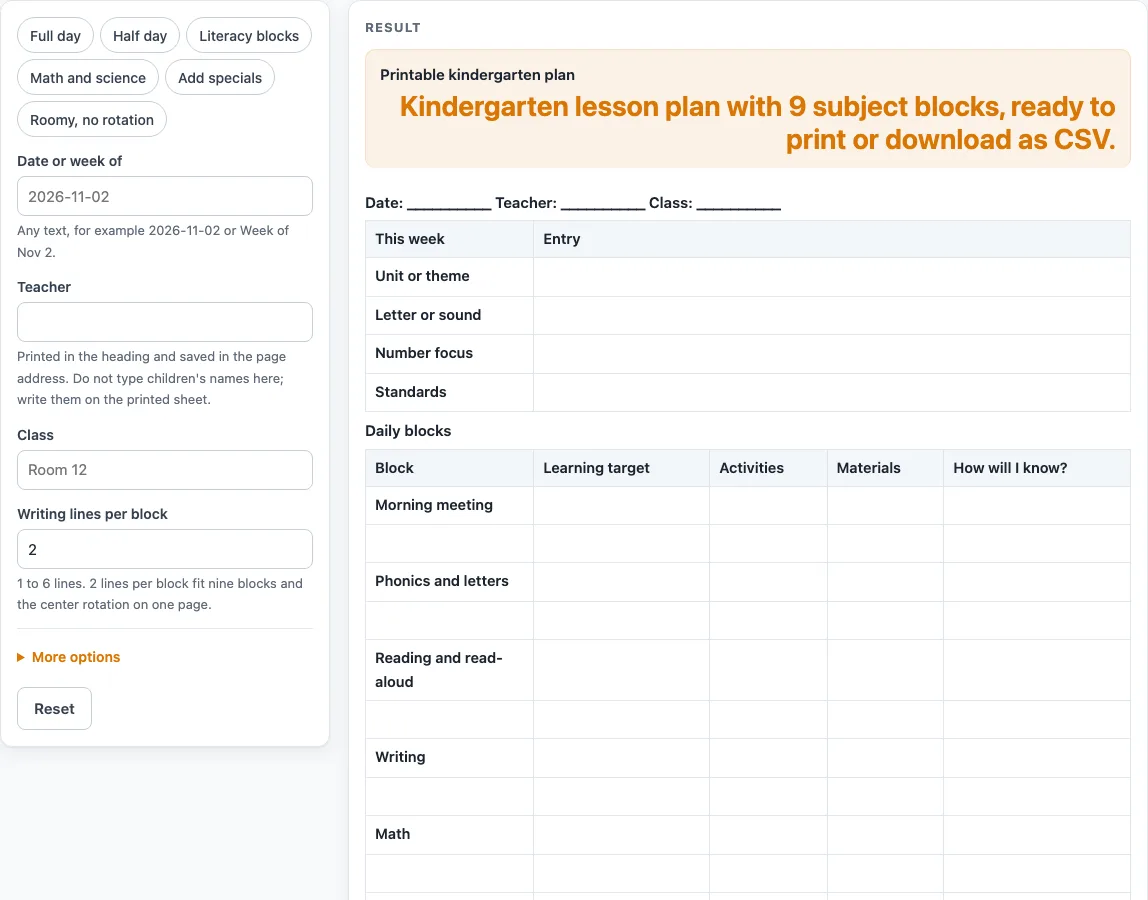
How to use the Kindergarten Lesson Plan Template
- Type “Date or week of”, “Teacher” and “Class”. This text prints in the heading.
- Pick a preset, or keep the default. “Full day” shows nine blocks. “Half day” keeps Morning meeting, Phonics and letters, Reading and read-aloud, Math and Closing circle at 3 lines each, with no rotation.
- Use the switch for each block to turn it on or off. Specials is off by default.
- Set “Writing lines per block” from 1 to 6. The default is 2.
- Switch on “Week focus table” if you want the rows Unit or theme, Letter or sound, Number focus and Standards. Write your local standard code in the Standards row yourself, because the page lists no standards.
- Switch on the “Materials column” and the “How will I know? column” if you want them.
- Switch on “Center rotation table”, then list your centers one per line, up to 8. The default list is Reading corner, Writing, Math games, Blocks and Art.
- Read any messages. No block, lines below 1, and an empty centers list (with the rotation table on) are errors. More than 8 centers are cut to 8 with a warning, and so are more than 6 lines. A table over 24 rows gets a long-table warning.
- Print the page, or select the CSV button to save all tables as a .csv file.
The print view shows the heading and bordered tables in black and white. Your settings are kept in the page address, so the link keeps them.
What is a kindergarten lesson plan template?
It is a fill-in sheet for one kindergarten day, divided into subject blocks. Each block has its own row, and the empty cells leave room for you to write by hand or in a spreadsheet. The layout is this tool’s own design, and it states no time guideline for any block, so you decide how long each part runs.
Which blocks belong in a kindergarten day plan?
The builder offers ten blocks: Morning meeting, Phonics and letters, Reading and read-aloud, Writing, Math, Science, Social studies, Centers, Specials and Closing circle. The default shows nine of them, all except Specials. The first column of each block holds the block name, and every other cell is blank for handwriting.
How do the tables fit together?
The default plan has three tables in order. The week-focus table comes first, with the rows Unit or theme, Letter or sound, Number focus and Standards. The blocks table comes second, with the columns Block, Learning target, Activities, Materials and How will I know? By default it holds 9 blocks at 2 lines each, which is 18 rows. The Center rotation table comes last, with centers down the side and Mon to Fri across, 5 rows in all. You can switch off the Materials column, the How will I know? column, the week focus table and the rotation table separately.
How does the center rotation table work?
It lists the centers you type, one per line, up to 8. Each center sits in its own row, with a column for each day from Mon to Fri. Group names are left blank for you to write in. The rotation table is optional, and the Half day preset turns it off.
How do presets and line counts change the plan?
A preset sets the blocks, lines and rotation switch in one step. “Add specials” gives 10 blocks at 1 line each. “Roomy, no rotation” gives 3 lines per block and removes the rotation table. “Literacy blocks” keeps Morning meeting, Phonics and letters, Reading and read-aloud, Writing and Centers at 3 lines. “Math and science” keeps Morning meeting, Math, Science and Closing circle at 3 lines. The line count applies to every block at once, and you can change it after picking a preset. It must be at least 1, and 0 gives an error.
Why does the page show limits and warnings?
The limits keep the plan readable on a printed page. Lines are capped at 6, centers at 8, and any table over 24 rows gets a long-table warning saying it may run onto a second printed page. When you see a warning, adjust the setting it names, and the tables update to match.
Worked examples
| Input | Result |
|---|---|
| 9 blocks, 2 lines each | 27 rows, 6 columns |
| 5 blocks, 3 lines each | 19 rows, 5 columns |
| 5 blocks, 3 lines each | 24 rows, 6 columns |
| 10 blocks, 1 lines each | 19 rows, 6 columns |
Calculated by the tool above; open it with the same values to see each step.
Frequently asked questions
Is this kindergarten lesson plan template free, and do I need an account?
Yes, it is free and needs no account. It runs in your browser, and the plan is built on your device.
Does the template tell me which standards to teach?
No. The Standards row is a blank line for you to write the local standard code in. The page lists no standards of its own.
Can I type a child’s name into the plan?
No. The page has no field for a child’s name. The typed fields are date or week of, teacher, class and the list of centers. The table cells are blank for you to write in by hand.
Is this template approved by a licensing agency?
No claim is made that it meets any rule. It is a general-purpose template, not legal, medical or licensing advice. Check what your school, district, center or state licensing agency requires before you use it.
Can I open the plan in a spreadsheet?
Yes. Select the CSV button (“Download as CSV”) to save all of the tables as a .csv file, which most spreadsheet programs can open.
Why does my plan show a warning?
A warning means a setting is outside the limits. Common causes are more than 8 centers, which are cut to 8, more than 6 lines, which are cut to 6, or a table with more than 24 rows. Change the setting named in the message and the plan will update.
Related tools
- Daily Lesson Plan Template: Use this when you want a plan laid out by the day rather than by the subject block.
- Lesson Plan Template: Use this for a general lesson plan that is not tied to a kindergarten day.
- Preschool Lesson Plan Template: Use this for a plan for younger children in a preschool setting.
- Preschool Schedule: Use this to map out the order of a preschool day.
- Preschool Visual Schedule: Use this to make a picture-based daily schedule for a preschool classroom.
- Teacher Lesson Plan Book: Use this to keep several lesson plans together in one book-style layout.
- Weekly Lesson Plan Template: Use this when you want to plan a full week at a glance.