Report Card Comments for Kindergarten
Choose kindergarten or preschool, a skill such as letter sounds, counting or sharing, and a level, then copy five comments written for young learners.
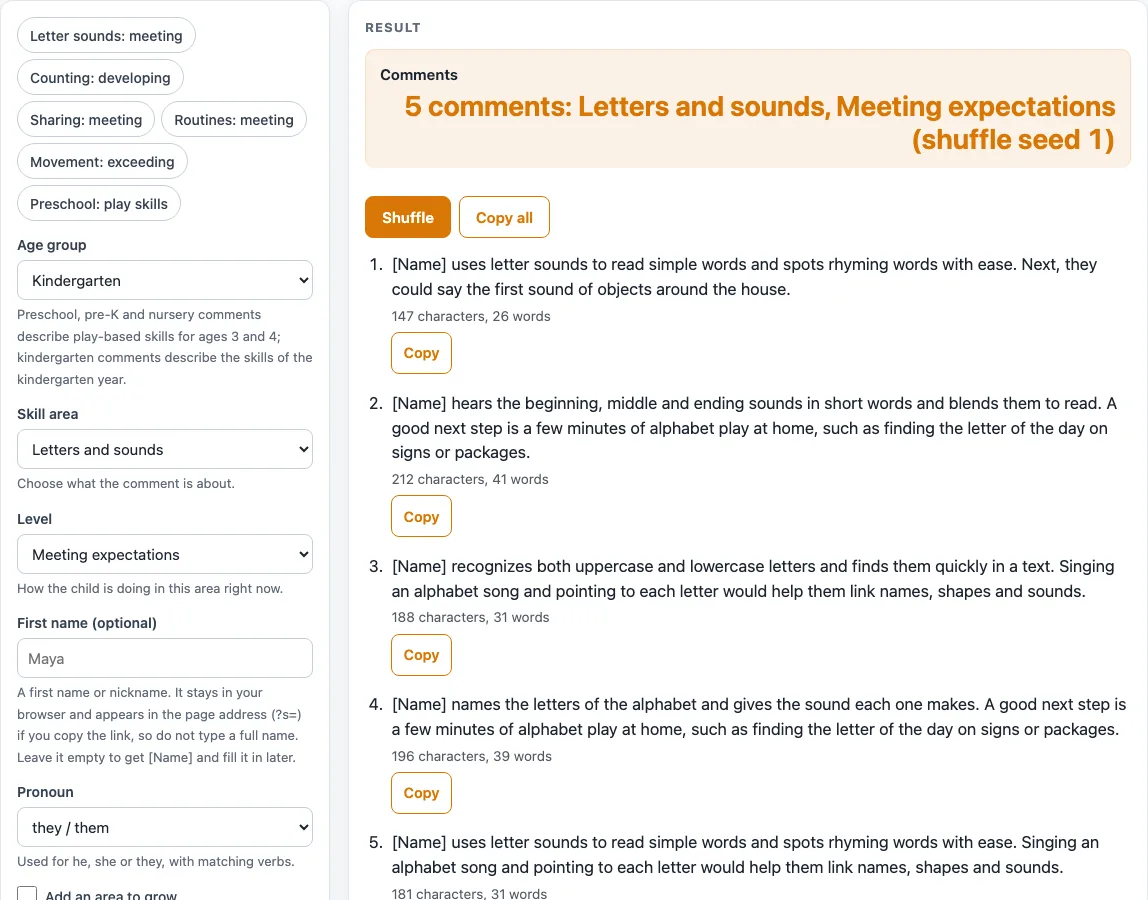
How to use the report card comments tool
- Choose an “Age group”: “Kindergarten” (the default) or “Preschool, pre-K or nursery”.
- Pick one of the 10 areas in “Skill area”. The default is “Letters and sounds”.
- Pick a “Level”: “Needs support”, “Developing”, “Meeting expectations” (the default) or “Exceeding expectations”.
- Optional: type a first name in the “First name” field, up to 24 characters. Use a first name or nickname only, as the help text says. With no name, each comment starts with [Name] so you can fill it in later.
- Pick a “Pronoun”: “she / her”, “he / him” or “they / them” (the default). A typed name always takes the singular verb.
- Set the two switches. “Add a next step” is on by default. “Add an area to grow” is off by default. Each comment has one to three sentences; the default has two.
- Read the five comments. Each one shows its character and word count, for example 147 characters and 26 words for the first default comment.
- Click “Copy” under a comment, or “Copy all” for the whole set.
- Click “Shuffle” for a different set. For a set you can repeat, set the “Shuffle seed” in the advanced options (0 to 999999, default 1).
You can also start from one of six preset chips: “Letter sounds: meeting”, “Counting: developing”, “Sharing: meeting”, “Routines: meeting”, “Movement: exceeding” or “Preschool: play skills”. To print the five comments, use “Print / save as PDF”.
What are kindergarten report card comments?
Kindergarten report card comments are short sentences that describe what a child can do and what they are working on in the kindergarten year. This tool’s kindergarten bank describes skills such as letter sounds, counting to 20 and writing a name. Each comment is written to be checked against the child before it is used.
How does the tool build each comment?
The tool picks a strength sentence that matches your skill area and level. It can add a next step or an area to grow, depending on the switches you set. The result is one to three sentences, with the name and pronoun you chose placed into the wording.
Why are kindergarten and preschool comments different?
The two age groups use separate banks, and they share no sentence. The kindergarten bank describes skills such as letter sounds and writing a name. The preschool bank describes play-based skills such as naming a few letters, counting small groups and joining circle time.
Why turn on the next step or growth switch?
The kindergarten bank has four strength sentences for each area and level, so five different comments need a next step or area to grow switched on; with both off you get four. The preschool bank has two strengths per area and level. With a next step on, two strengths combined with three next steps still give five comments. With both switches off, the preschool bank shows only two comments and displays the warning “Only 2 different comments are possible”. With only “Add an area to grow” on, it shows four.
What wording rules apply to every sentence?
Every sentence in the bank follows the same editorial rules, written for this site. Strengths come first. Each sentence names a specific, observable skill. Growth is described with wording such as “is learning to” or “is working on”. Sentences use no labels or diagnoses, make no comparison with other children, and make no promises or predictions. Each bank entry is one sentence.
How do the name and pronoun settings change a comment?
The first name field is optional. The name stays in your browser, but it appears in the page address if you copy the link. If you leave it blank, the comment starts with [Name]. The pronoun select sets matching verbs: “she / her”, “he / him” or “they / them” (the default). A typed name always takes the singular verb, so a comment reads, for example, “Sam explains how they feel and why”.
Worked examples
| Input | Result |
|---|---|
| Letters and sounds, Meeting expectations, they / them | [Name] uses letter sounds to read simple words and spots rhyming words with ease. Next, they could say the first sound of objects around the house. |
| Counting and numbers, Developing, she / her | Maya counts to 20 with growing accuracy and is learning to start counting from a number other than one. An area to grow is counting accurately beyond 15 without skipping a number. Telling a family member how many of something there are, and how she knows, would build her number sense. |
| Routines and listening, Meeting expectations, he / him | Sam washes hands, finds a spot at the table and follows two-step directions. Using a short picture list for the morning would help him remember the steps without reminders. |
| Feelings and self-control, Needs support, they / them | Alex responds well to a calm voice and a quiet space, and settling down after upset is a skill they are still developing. Using words instead of crying or shouting when upset is a skill they are still building. A good next step is talking about feelings at home with a picture book, naming how the characters feel. |
Calculated by the tool above; open it with the same values to see each step.
Frequently asked questions
Frequently asked questions
Is this report card comments for kindergarten tool free?
Yes. It is free and runs in your browser. The comments are built on your device from the bank on this site.
Can I copy the comments straight onto a report card?
You can copy them with the “Copy” button or “Copy all”, but treat each one as a starting point. Check it against the child and your school’s guidelines first.
Why does the tool show only two comments for preschool?
With both “Add a next step” and “Add an area to grow” switched off, only 2 different comments are possible, and the tool warns you. Switch on “Add a next step” to see five comments.
Does the tool keep the child’s name?
The name is not sent anywhere, but if you copy the link it appears in the page address (?s=). Use a first name or nickname only.
How do I get the same five comments again?
Set the shuffle seed in the advanced options to the same number each time. The default seed is 1, so the set stays the same until you change it or press “Shuffle”, which moves the seed up by one.
Can I print the comments?
Yes. “Print / save as PDF” prints the five comments shown on the page.
Related tools
- End of Year Report Card Comments: use this when you need comments for the end of the school year.
- Final Grade Calculator: use this to work out a final grade from the numbers you enter.
- Report Card Comments: use this for comments across other grade levels.
- Report Card Template: use this to set up a printable report card layout.
- Test Score Calculator: use this to calculate a test score from the numbers you enter.
- Weighted Grade Calculator: use this when different assignments count for different amounts.