Lesson Plan Template
Choose which sections your lesson plan needs and how many writing lines each gets, then print the blank lesson plan or download it as a CSV for a spreadsheet.
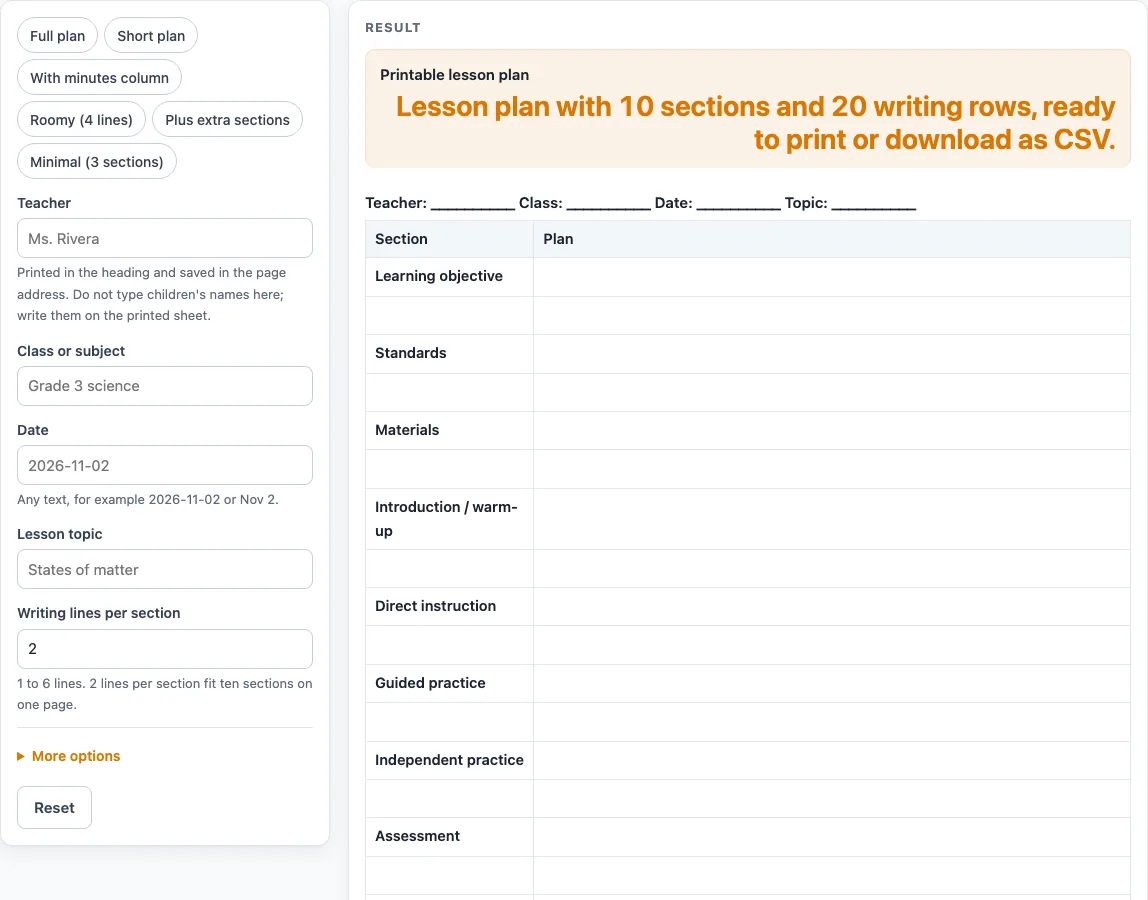
How to use the Lesson Plan Template
- Type “Teacher”, “Class or subject”, “Date” and “Lesson topic” into the four heading fields. Leave any field empty if you like; an empty field prints a line of underscores.
- Set “Writing lines per section”, from 1 to 6. The default is 2. Numbers above 6 are cut to 6 with a warning.
- Switch on “Add a minutes column” if you want a third column called Minutes.
- Turn the 13 section switches on or off (for example “Standards section”). The default plan has ten sections on: everything except Vocabulary, Homework and Notes and reflection.
- Or pick a preset: “Full plan”, “Short plan”, “With minutes column”, “Roomy (4 lines)”, “Plus extra sections” or “Minimal (3 sections)”.
- Check the result under the table. If you see the long-table warning, the table has more than 28 rows and may run onto a second printed page. Use fewer lines or fewer sections to reduce the row count.
- Print the page. The print view shows only the heading and the bordered table, in black and white.
- Select “Download as CSV” to save the heading line, column names and rows as a .csv file. Open it in a spreadsheet or paste it into a document.
If every section switch is off, you will see the error “Switch on at least one section.” Turn on at least one section to build the table again.
What sections belong in a lesson plan template?
The template uses 13 common parts of a lesson plan: Learning objective, Standards, Materials, Vocabulary, Introduction / warm-up, Direct instruction, Guided practice, Independent practice, Assessment, Differentiation, Closure, Homework, and Notes and reflection. We chose and worded these sections ourselves, and the page does not state a standard or requirement for them. Each section name sits in the first row of its block, and the remaining rows are empty for handwriting. Start with the sections that match your own lesson routine, and switch off the rest.
How many writing rows does a lesson plan template need?
The row count is the number of sections multiplied by the lines per section. The default plan has ten sections with 2 lines each, giving 20 rows that fit on one US Letter page. The Short plan has 6 sections with 3 lines each, giving 18 rows. The “Roomy (4 lines)” preset uses 4 lines per section, which gives 40 rows and triggers the long-table warning. “Plus extra sections” gives 13 rows with 1 line each, and “Minimal (3 sections)” gives 12 rows across Learning objective, Direct instruction and Assessment.
Why does the row limit matter when printing?
The warning appears when the longest table has more than 28 rows, because that usually runs onto a second printed page. This is our own estimate, based on 8.5 mm per row. It is not a printer setting, so your result may vary. If your printed sheet spills over, reduce the writing lines or switch off a few sections, then print again.
How do the minutes column and section switches change the table?
Switching on the minutes column adds a third column called Minutes beside Section and Plan. Each section switch adds or removes that section’s block from the table. The longest table determines whether the row warning appears, so changing one switch can clear or trigger the warning. Check the result after each change before you print.
Can I use a blank lesson plan template for child-care planning?
Child-care staff can use the same layout to outline activities, using the sections that fit their routine. The page has no field for a child’s name, so keep names off the sheet and write only the teacher or group label, date and topic in the heading.
Does a lesson plan template meet school or licensing rules?
This is a general-purpose template. It is not legal, medical or licensing advice, and the page does not claim approval from any body. Check what your school, district, center or state licensing agency requires before you rely on any layout for official records.
Worked examples
| Input | Result |
|---|---|
| 10 sections, 2 lines each | 20 rows, 2 columns |
| 6 sections, 3 lines each | 18 rows, 2 columns |
| 10 sections, 2 lines each | 20 rows, 3 columns |
| 3 sections, 4 lines each | 12 rows, 2 columns |
Calculated by the tool above; open it with the same values to see each step.
Frequently asked questions
Is this lesson plan template free?
Yes. The tool is free and runs in your browser.
Where do the things I type go?
The sheet is built in your browser. The teacher, class, date and topic text, along with your page settings, is kept in the page address.
Can I put a student’s name on the sheet?
The page has no field for a child’s name. Write only the teacher, class or subject, date and topic in the heading fields.
Can I get a .docx file from this page?
The page does not produce a .docx file. Select “Download as CSV” to save the table as a .csv file. It opens in a spreadsheet and can be pasted into a document.
What happens if I switch off every section?
You see the error “Switch on at least one section.” Turn on at least one section to build the table.
Why did I get a long-table warning?
The longest table has more than 28 rows, which usually runs onto a second printed page. Reduce the writing lines per section or switch off some sections to lower the row count.
Does this template meet state or school requirements?
It is a general-purpose template, not legal, medical or licensing advice. Check what your school, district, center or state licensing agency requires.
Related tools
- Daily Lesson Plan Template: Use it when you want a plan for a single day rather than one lesson.
- Weekly Lesson Plan Template: Use it when you are planning several lessons across one week.
- Kindergarten Lesson Plan Template: Use it when you are planning lessons for a kindergarten class.
- Preschool Lesson Plan Template: Use it when you are planning activities for a preschool group.
- Preschool Schedule: Use it when you need to lay out the order of the day for a preschool group.
- Preschool Visual Schedule: Use it when you want a schedule built around pictures for young children.
- Teacher Lesson Plan Book: Use it when you want a longer book-style record of your lessons over time.