Media Release Form (Sample)
Tick what media may be used and where it may appear, then print a sample photo and media release form. The wording is a sample for you to review.
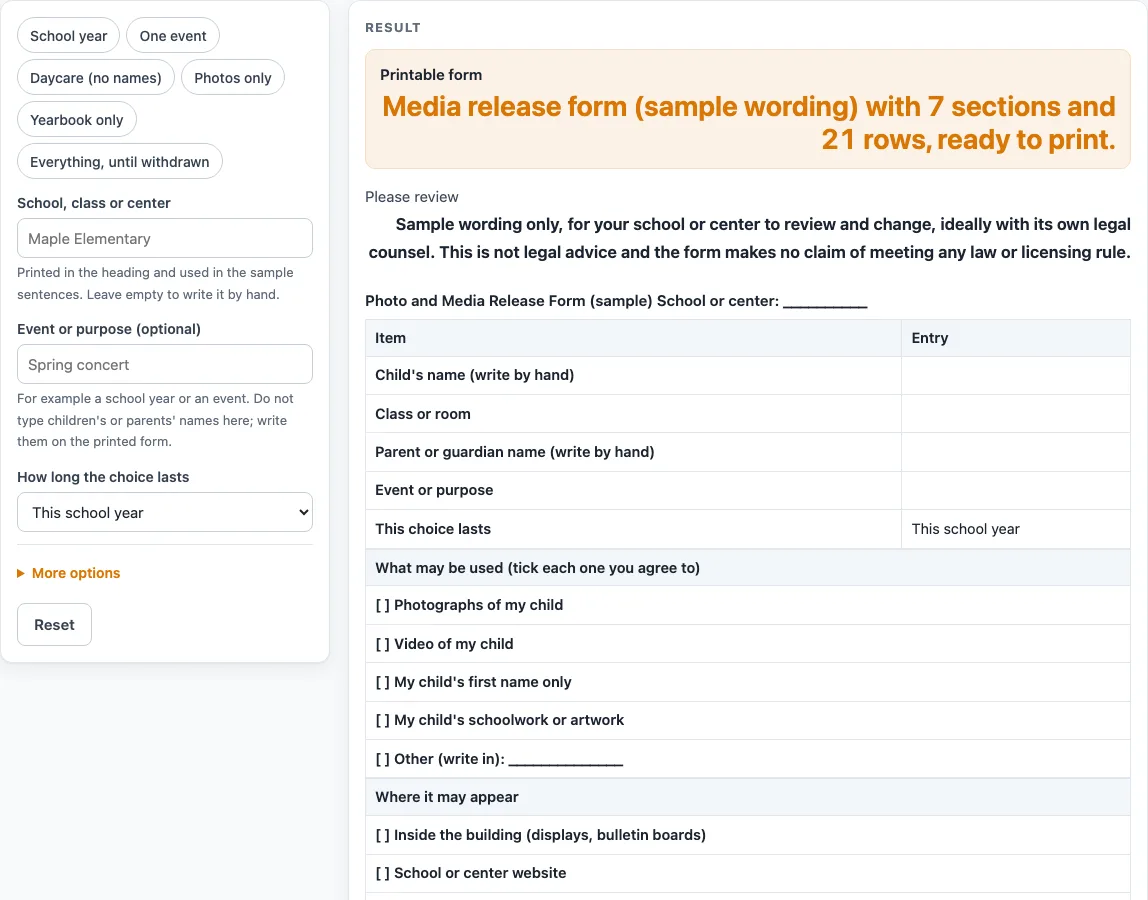
How to use the Media Release Form
- Type your school or center in “School, class or center”. It appears in the heading and in one sample sentence.
- Optionally type the reason in “Event or purpose (optional)”, for example a concert.
- Choose “How long the choice lasts”: “This school year”, “This event only”, “Until withdrawn in writing”, or leave blank to write by hand.
- In the advanced options, switch on the kinds of media to list: “Photographs”, “Video”, “Audio recordings”, “First name”, “Student work” and “Quotes”. The first two, first name and student work are on by default. A write-in “Other” line is always added.
- Switch on the places where media may appear: inside the building, school or center website, newsletters and printed handouts, social media pages run by the school or center, news media, and yearbook. The first three are on by default, plus an “Other” line.
- If needed, type up to 12 lines in “Extra terms or notes (optional)”.
- Check the explanation sentences and the three choice boxes. The title says (sample), and the explanation heading asks for review.
- Print the page. The print view shows the heading and bordered tables in black and white, and tick boxes print as [ ].
- Or select “Download as CSV” to save the tables as a .csv file.
For a quick start, pick a preset: “School year”, “One event” (photos and video, social media pages, purpose Spring concert), “Daycare (no names)” (video and first name off), “Photos only”, “Yearbook only”, or “Everything, until withdrawn”.
What does a media release form cover?
A media release form is a written record of whether a school or center may use a child’s photos, video, audio, name, or work, and in which places. This tool’s default layout has 7 sections and 21 rows: details, what may be used, where it may appear, explanation, choice, changing your mind, and signature. The rows add up as 5 + 5 + 4 + 2 + 3 + 1 + 1 = 21. The “what may be used” and “where it may appear” sections each have one extra write-in line for “Other”.
Why is the sample wording marked as a sample?
The sentences on the form are neutral sample wording that we wrote. They are not copied from any form or law. The form title says (sample), and the page asks the school or center to have it reviewed, ideally with its own counsel. The page does not say the form complies with, or is required by, any law or school policy.
How do the media kinds and places differ?
The media kinds describe what may be used, such as photographs or the child’s first name. The places describe where that material may appear, such as inside the building or in a yearbook. Each switched-on kind and each place prints as its own tick box line, so a parent ticks the kinds and the places separately. Using the Everything preset gives 7 media rows and 7 place rows, one for each item plus the “Other” line.
How does the choice block work?
The choice block has three boxes: permission for everything ticked, permission only for a written list, and no permission. The form also says that the choice can be changed in writing and applies to future use. The two explanation sentences state that the school or center may use the ticked items only in the ticked places to show the life and work of the school, that nothing is paid, and that printed material may not be possible to take back.
Why are the name lines blank?
The tool has no input for a child’s name, a parent’s name, or any other personal detail. The details lines for child, class, and parent or guardian print blank so they can be filled in by hand. The school or center name, the purpose and the optional note lines you type stay in your browser and are written into the page address, so keep names and private details out of them.
Worked examples
| Input | Result |
|---|---|
| 21 rows | 7 sections, 21 rows |
| 18 rows | 7 sections, 18 rows |
| 18 rows | 7 sections, 18 rows |
| 17 rows | 7 sections, 17 rows |
| 27 rows | 8 sections, 27 rows |
Calculated by the tool above; open it with the same values to see each step.
Frequently asked questions
Is this form legally valid?
The page does not say the form complies with, or is required by, any law or school policy. It is a sample with wording we wrote. Ask the school or center to have it reviewed, ideally with its own counsel, before using it.
Does the tool need an account or cost money?
No. It is free and runs in your browser.
Can I use this for a daycare?
Yes. The “Daycare (no names)” preset turns off video and first name and keeps photographs, student work, inside the building and newsletters. You can still change any switch after applying a preset.
Where do names go on the form?
The tool has no field for names. Write the child’s, class, and parent or guardian details by hand on the blank lines.
Can a parent change their choice later?
Yes, according to the form’s own sentence, the choice can be changed in writing and applies to future use. Printed material may not be possible to take back, so the form says so.
Can I download the form as a file?
Yes. “Download as CSV” saves the tables as a .csv file made in your browser, and nothing is uploaded. You can also use “Print / save as PDF” for a paper copy.
Related tools
- Attendance Sheet: Use it to record who is present each day in a class or group.
- Daycare Contract Template: Use it to draft the general terms between a family and a daycare.
- Daycare Cost Calculator: Use it to work out costs from the numbers you enter.
- Daycare Enrollment Form: Use it to collect enrollment details when a child joins a daycare.
- Emergency Contact Form: Use it to list who to call if a child needs help during the day.
- Field Trip Permission Slip: Use it to ask for a parent’s permission before a trip away from the school.
- Nanny Cost vs Daycare Calculator: Use it to compare costs for a nanny and a daycare using your own numbers.
- Parent Contact Log: Use it to record calls, messages, and meetings with parents.