Preschool Schedule
Type your start time and the activities with their minutes. You get the time of every block, the total length and a check that the day fits, as a sheet ready to print.
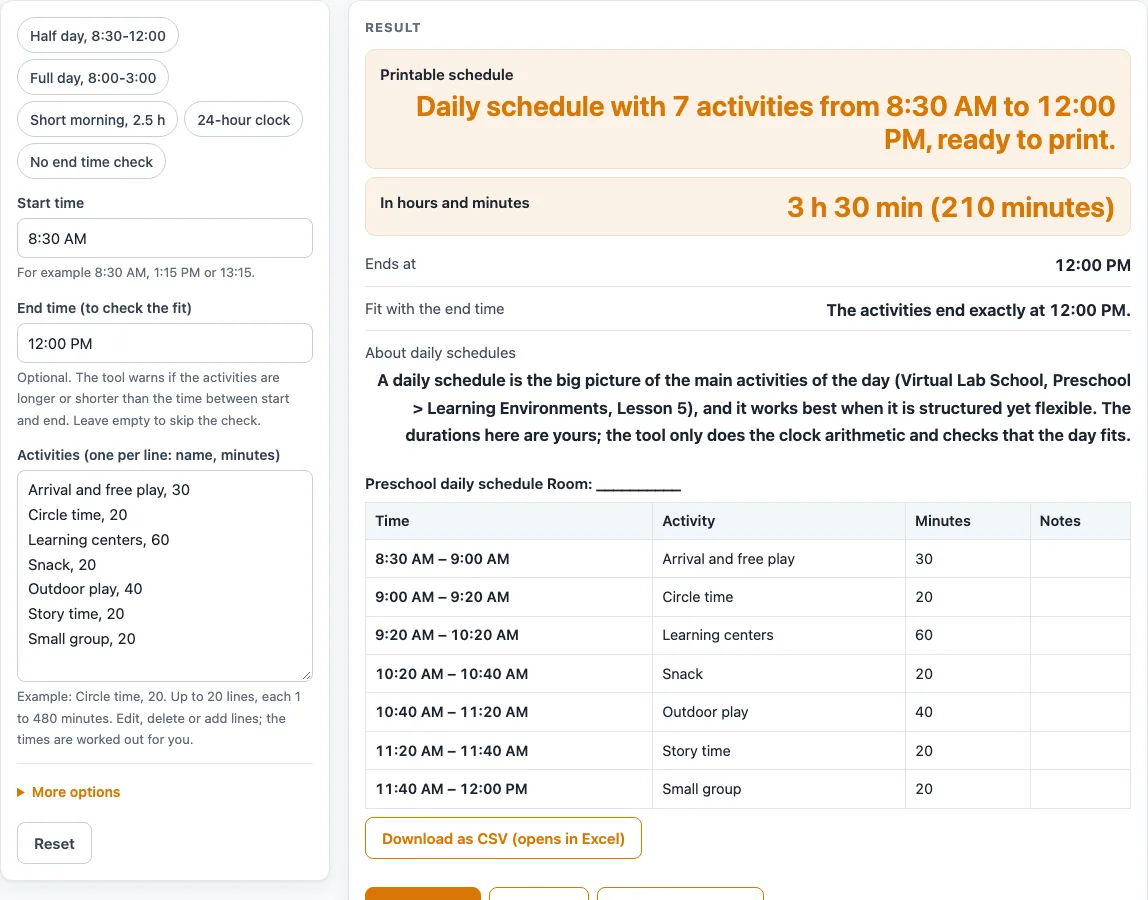
How to use the preschool schedule tool
- Pick a preset (“Half day, 8:30-12:00”, “Full day, 8:00-3:00”, “Short morning, 2.5 h”, “24-hour clock” or “No end time check”), or keep the default half-day schedule.
- Enter the “Start time”, for example 8:30 AM, 1:15 PM or 13:15.
- Optionally enter an “End time (to check the fit)”. Leave it empty to skip the fit check.
- Under the advanced options, choose the 12-hour or 24-hour “Clock”.
- Type the “Schedule title” and the “Room or class”. An empty room prints as a blank line you can write on.
- In “Activities”, type one per line as name, minutes, such as “Circle time, 20”. Use whole numbers from 1 to 480, and up to 20 lines.
- Turn the “Notes column” on or off. It is a blank column for your own writing.
- Read the results: the total length in minutes and in hours and minutes, the end time of the last activity, and the fit message.
- If an error appears, fix that line. Errors cover a time that cannot be read, an end time not later than the start, a line without minutes, minutes of 0 or above 480, an empty list, and a schedule that runs past midnight.
- Print the schedule, or download the table with the CSV button.
Do not type children’s names into the header. The CSV file opens in a spreadsheet program.
What is a preschool schedule?
A preschool schedule is a plan of the main activities in a day, with the time each one starts and ends. Virtual Lab School describes a daily schedule as the big picture of the day’s main activities, and notes that it works best when it is structured yet flexible. This tool turns that big picture into a table you can print.
How does the tool work out the times?
Each activity starts when the one before it ends, and the first starts at the start time. Each end time is the start plus the minutes on that line. The total length is all the minutes added together.
The default half-day schedule has seven activities: 30 + 20 + 60 + 20 + 40 + 20 + 20 = 210 minutes, or 3 h 30 min. Starting at 8:30 AM, it ends exactly at 12:00 PM. The full-day preset has 12 activities totalling 420 minutes (7 h), and Lunch runs 10:55 AM to 11:35 AM, followed by Rest time from 11:35 AM to 1:05 PM. The short morning preset has seven activities totalling 150 minutes (2 h 30 min), running from 9:00 AM to 11:30 AM.
How long should each activity be?
The tool does not decide this. The durations are the teacher’s own choice, and the preset names and minutes are examples, not a recommendation or a licensing requirement. The tool only does the clock arithmetic. Choose minutes that suit your class and your program, and keep each line a whole number from 1 to 480.
What does the end time check tell you?
If you enter an end time, the tool compares it with the start time plus the total. It says when the day ends exactly at the end time, warns how many minutes are left over, or shows how many minutes the activities run past it. With no end time, the check is skipped. These results are calculated from the numbers you enter. The check shows whether the timings add up; it does not judge whether the plan suits your children.
Why use a preschool daily schedule template?
A template gives you a working table, so you only change the activity names and minutes. Because each activity begins when the one before ends, changing one line moves the start and end times of every line after it. That makes it quick to test a different order or length before you print. The header shows the title and “Room: …”, and the table can carry a blank Notes column for your own writing.
Sources (checked 15 October 2026): virtuallabschool.org
Worked examples
| Input | Result |
|---|---|
| 7 activities from 8:30 AM | 3 h 30 min (210 minutes), ends 12:00 PM |
| 12 activities from 8:00 AM | 7 h (420 minutes), ends 3:00 PM |
| 7 activities from 9:00 AM | 2 h 30 min (150 minutes), ends 11:30 AM |
| 7 activities from 8:30 AM | 3 h 30 min (210 minutes), ends 12:00 |
Calculated by the tool above; open it with the same values to see each step.
Frequently asked questions
Can I type children’s names into the schedule?
No. The header is for the schedule title and the room or class only. Do not type children’s names into the page.
Is anything saved or uploaded?
Nothing is uploaded or stored. Only the settings you type are kept in the page address, and the tool runs in your browser with no sign-up.
What is the most activities the tool accepts?
You can enter up to 20 lines. Extra lines are cut, and a warning is shown.
What range of minutes can I use for each activity?
Each line takes whole numbers from 1 to 480. A line with 0 minutes or more than 480 minutes shows an error.
What happens if my schedule runs past midnight?
The tool shows an error for any schedule that would run past midnight, so you will need to shorten or change the timings.
Can I download the schedule?
Yes. The CSV button downloads the table, and the file opens in a spreadsheet program.
What does the fit check tell me?
If you enter an end time, the tool says the activities end exactly at it, or shows how many minutes are left before it or how many minutes the activities run past it. With no end time, the check is skipped.
Can I use a 24-hour clock?
Yes. Choose the 24-hour “Clock” under the advanced options, or use the “24-hour clock” preset. Times then show as 08:30 instead of 8:30 AM.
Related tools
- Daily Lesson Plan Template: use it when you want to plan the content of a single day’s lessons.
- Kindergarten Lesson Plan Template: use it when you plan lessons for kindergarten classes.
- Lesson Plan Template: use it for a general lesson plan that is not tied to a particular age group.
- Preschool Lesson Plan Template: use it when you plan the lessons for a preschool class.
- Preschool Visual Schedule: use it when you want a picture-based daily schedule for young children.
- Teacher Lesson Plan Book: use it to keep several plans together in one printable book.
- Weekly Lesson Plan Template: use it when you want to plan lessons across a whole week.