Preschool Visual Schedule
List the steps of your routine and choose a layout. Each card has a number, a picture and the words, ready to print and cut out or hang as a chart.
How to use the Preschool Visual Schedule
- Type your routine steps into “Routine steps (one per line, in order)”. Use 2 to 12 lines. Fewer than 2 gives an error, and more than 12 are cut with a warning.
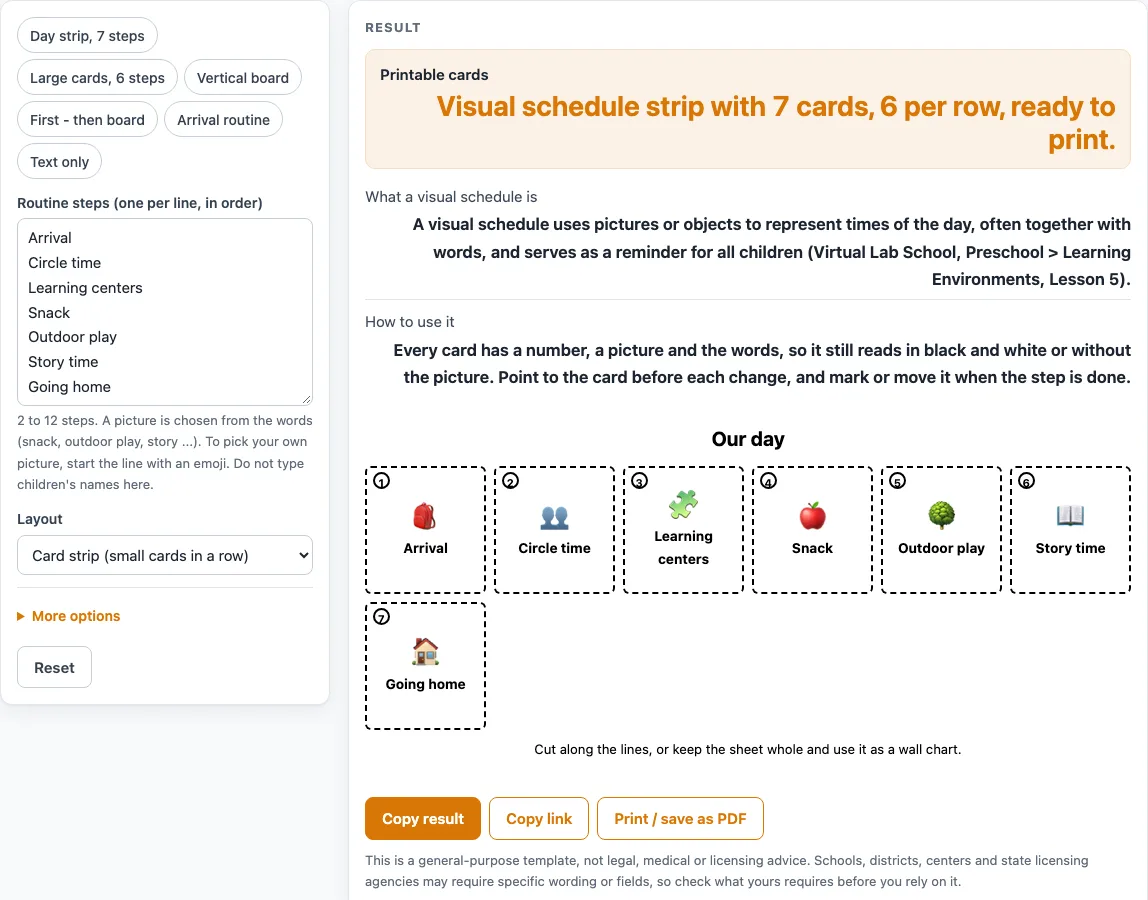
- Check the picture for each step. The tool picks an emoji from the words in the line using a keyword list. For example, “Snack” gets 🍎 and “Going home” gets 🏠. A step with no keyword gets ⭐.
- To choose your own picture, start the line with an emoji. That emoji stays as the picture, and the rest of the line becomes the label.
- Under the advanced options, switch off “Show a picture on each card” for text-only cards.
- Switch on “Done box on each card” for a Done box on each card. It is off by default.
- Type a “Title”, or leave it empty for “Our day”.
- Pick a “Layout”: card strip (small cards, up to 6 per row), large cards (2 per row), vertical board (one wide card per step), or first-then board (exactly 2 large cards labeled First and Then, with an arrow).
- Or start from a preset: “Day strip, 7 steps”, “Large cards, 6 steps”, “Vertical board”, “First - then board”, “Arrival routine” or “Text only”.
- Print the sheet. Cut along the lines to make separate cards, or keep the page whole as a wall chart.
The tool uses emoji and plain text only, with no photos and no field for children’s names.
What is a preschool visual schedule?
A preschool visual schedule uses pictures or objects to show the times of the day, often together with words. Virtual Lab School describes it as a reminder that serves all children in the group. The note under the cards suggests pointing to the card before each change, and marking or moving it when the step is done.
Why do the cards keep the words when they have pictures?
Every card prints the step’s words, so the cards still make sense with the picture switched off. Each card also has a step number, which shows the order of the routine. Together, the number, the picture and the words give children and adults the same reference for what happens next.
How does the tool choose a picture for each step?
The tool reads the words in each line and checks them against a keyword list. Arrival gets 🎒, Circle time gets 👥, Learning centers get 🧩, Snack gets 🍎, Outdoor play gets 🌳, Story time gets 📖, and Going home gets 🏠, for example. Wash hands gets 🧼. If no keyword matches, the step gets ⭐. A line that starts with an emoji keeps that emoji, so you can override the match whenever you want a different picture. Emoji look different on different devices and printers, so the words are the part you can count on.
How should a picture schedule be laid out?
The best layout depends on how many steps you have and where the chart will be used. A card strip holds small cards, up to 6 per row, and wraps to more rows. The default 7-step day therefore shows 6 cards in the first row and the 7th card in a second row. Large cards sit 2 per row, a vertical board gives one wide card per step, and a first-then board shows exactly two cards. The “Arrival routine” preset is a three-step board with Done boxes: Hang up backpack, Wash hands and Choose a center. Cut along the lines for separate cards, or use the whole page as a wall chart.
Sources (checked 15 October 2026): virtuallabschool.org
Worked examples
| Input | Result |
|---|---|
| 7 steps, Card strip (small cards in a row) | 7 cards |
| 6 steps, Large cards (2 per row) | 6 cards |
| 2 steps, First - then board | 2 cards |
| 3 steps, Vertical board | 3 cards |
Calculated by the tool above; open it with the same values to see each step.
Frequently asked questions
Can I make a preschool visual schedule without pictures?
Yes. Switch off “Show a picture on each card”, or choose the “Text only” preset. The cards then show the step number and the words only.
How many steps can one schedule have?
A schedule needs 2 to 12 steps. Fewer than 2 gives an error, and more than 12 are cut with a warning. The first-then board uses only the first 2 lines and warns you if you enter more.
Can I choose my own picture for a step?
Yes. Start the line with an emoji, and that emoji becomes the picture. The rest of the line is the label on the card.
Are photos supported?
No. The tool uses emoji and plain text only, and it has no photo uploads.
Does the tool save my schedule or my children’s names?
Nothing is saved or uploaded. The tool has no field for children’s names, so please do not type any into the steps or the title.
Is the tool free to use?
Yes. It is free, and you do not need to sign up.
What do the First and Then cards look like?
The first-then board shows exactly two large cards, labeled First and Then, with an arrow between them. The “First - then board” preset uses Wash hands and Snack.
Related tools
- Preschool Schedule: Use it to plan the times of your preschool day as a full timetable.
- Preschool Lesson Plan Template: Use it to plan the activities and goals for a preschool lesson.
- Daily Lesson Plan Template: Use it to plan one day of lessons in a single sheet.
- Kindergarten Lesson Plan Template: Use it when you are planning lessons for a kindergarten class.
- Lesson Plan Template: Use it for a general lesson plan that works for any grade level.
- Teacher Lesson Plan Book: Use it when you want a longer planner to record lessons across a term.
- Weekly Lesson Plan Template: Use it to plan lessons across a full week.