Report Card Comments
Pick a subject area and a level, add a first name and pronoun if you like, and get five ready-to-edit comments with an optional area to grow and next step.
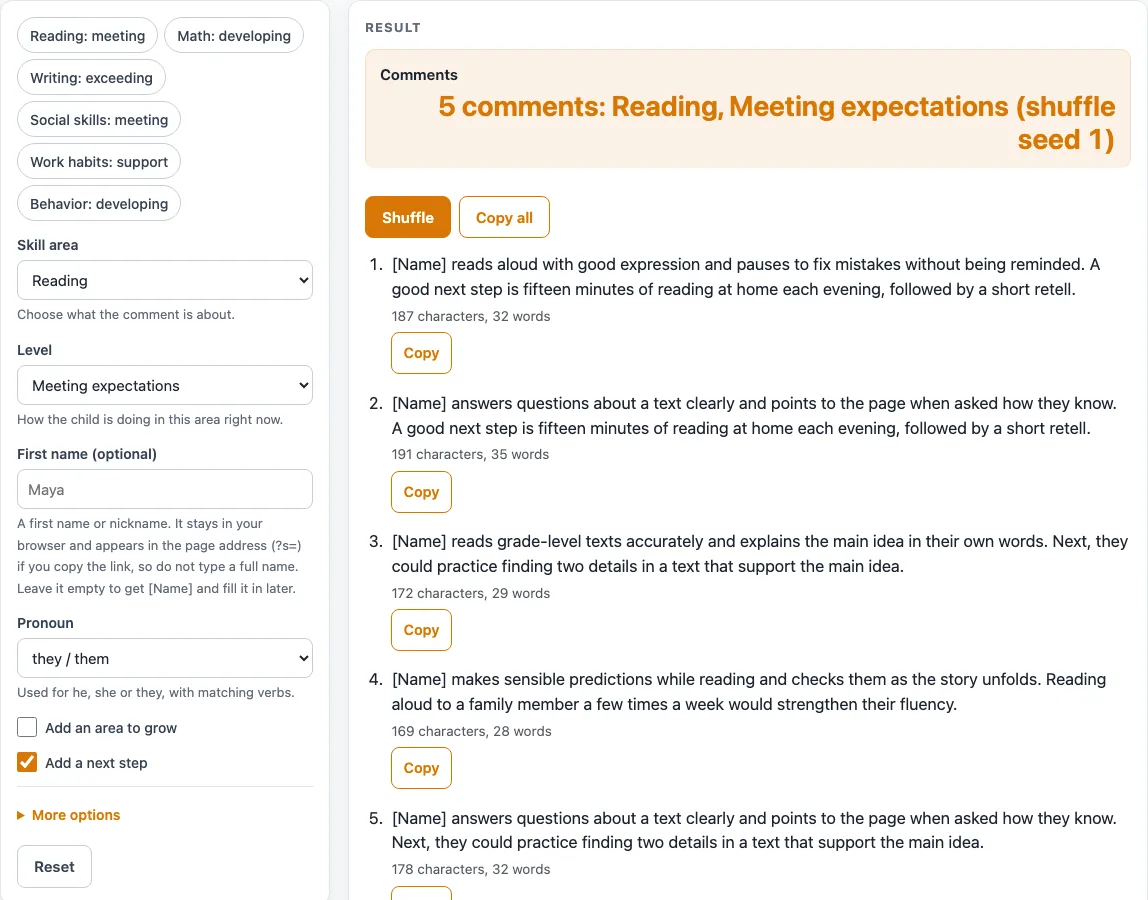
How to use the Report Card Comments Builder
- Open “Skill area” and choose one of the 11 areas, such as Reading. Reading is the default.
- Set “Level” to Needs support, Developing, Meeting expectations or Exceeding expectations. Meeting expectations is the default.
- Leave the “First name” field empty if you want the placeholder [Name], which you replace yourself. If you use a name, the field accepts a first name or nickname only, up to 24 letters, numbers, spaces, apostrophes, hyphens or periods. Three or more words trigger a warning.
- Choose a pronoun: she / her, he / him, or they / them. They / them is the default.
- Turn on “Add an area to grow” if you want one sentence about a skill still developing. It is off by default.
- Keep “Add a next step” on, or turn it off. It is on by default and adds one sentence of something to practice or try.
- Read the five comments in the result. Each shows its character count, word count and its own Copy button.
- Click “Shuffle” to see the next set of five.
- Edit any comment that does not fit the child, then use its Copy button or “Copy all” to copy all five.
Preset chips, such as Math: developing, fill in common choices in one click. The “Print / save as PDF” button prints the five comments with the choices used. Advanced options include the “Shuffle seed”, covered in the FAQ below.
What are report card comments?
Report card comments are short written notes that describe what a child can do in a subject or area and what to work on next. They sit beside grades or marks and add detail, describing the skill rather than only the result.
A useful comment is built from a few plain principles. It names a skill the child shows, uses words that can be checked by watching the child work, and leads with strengths. It avoids labels and diagnoses, avoids comparing the child with classmates, and avoids promises or predictions about the future. The bank behind this tool follows the same rules, with one sentence per entry.
How does the tool build each comment?
Each comment is assembled from three sentence types: a strength sentence chosen by skill area and level, an optional area-to-grow sentence, and an optional next step. The bank holds 242 sentences: 176 strength sentences (11 skill areas, 4 levels, 4 sentences each), 33 area-to-grow sentences and 33 next-step sentences.
The level changes the wording of the strength. Needs-support sentences still open with something the child does and describe the skill as one being built, so a lower level does not read as a verdict. Growth wording such as “is learning to” or “is working on” marks skills that are still developing.
With the default settings, a comment has two sentences: a strength and a next step. Turning on “Add an area to grow” makes three. With both switches off, only four different comments exist for each area and level, so the tool warns when that happens. The pronoun and name only change how the sentences are phrased.
Treat the output as a draft. Read each sentence against what the child does in class, change the wording where it does not fit, and follow the school’s report card guidelines.
Worked examples
| Input | Result |
|---|---|
| Reading, Meeting expectations, they / them | [Name] reads aloud with good expression and pauses to fix mistakes without being reminded. A good next step is fifteen minutes of reading at home each evening, followed by a short retell. |
| Math, Developing, she / her | Maya solves one-step problems correctly and is beginning to tackle problems with more than one step. Recalling basic facts quickly is a skill she is still strengthening. A good next step is five minutes of fact practice at home a few evenings a week. |
| Social skills, Exceeding expectations, he / him | Sam shows a sensitivity to others' feelings that makes him a trusted friend and partner. |
| Work habits, Needs support, they / them | Alex tries to keep materials ready and is gaining independence with short, clear routines. Another area for growth is checking work before handing it in. Next, they could use a small timer to break longer tasks into steps. |
Calculated by the tool above; open it with the same values to see each step.
Frequently asked questions
Is this tool free to use?
Yes. It runs in your browser, and no sign-up is needed. Nothing you choose is uploaded or stored.
Does the tool keep the child’s name?
The name stays in the browser. It also appears in the page address (?s=), and in the link if you copy it, which is why the field accepts a first name or nickname only.
Can I use these comments as they are?
Treat them as starting points. Read each one against what the child actually does, change anything that does not fit, and follow your school’s report card guidelines.
Why do I see only four comments with a warning?
Both switches are off, so only four different comments exist for that skill area and level. Turn on “Add an area to grow” or “Add a next step” to get five.
What does the Shuffle seed do?
The Shuffle seed is an advanced setting: a whole number from 0 to 999999, with a default of 1. The same seed and choices always give the same five comments. The Shuffle button adds 1 to the seed and shows the next set. A value that is not a whole number in that range gives an error.
Can I print the comments?
Yes. The “Print / save as PDF” button prints the five comments with the choices you used, so you can keep a record of which settings produced them.
Related tools
- End of Year Report Card Comments: use this when you need comments for the final report of the year.
- Report Card Comments for Kindergarten: use this when you are writing comments for younger children in kindergarten.
- Report Card Template: use this when you want a blank layout to place your comments on.
- Weighted Grade Calculator: use this when you need the grade that goes with the comments.