Report Card Template
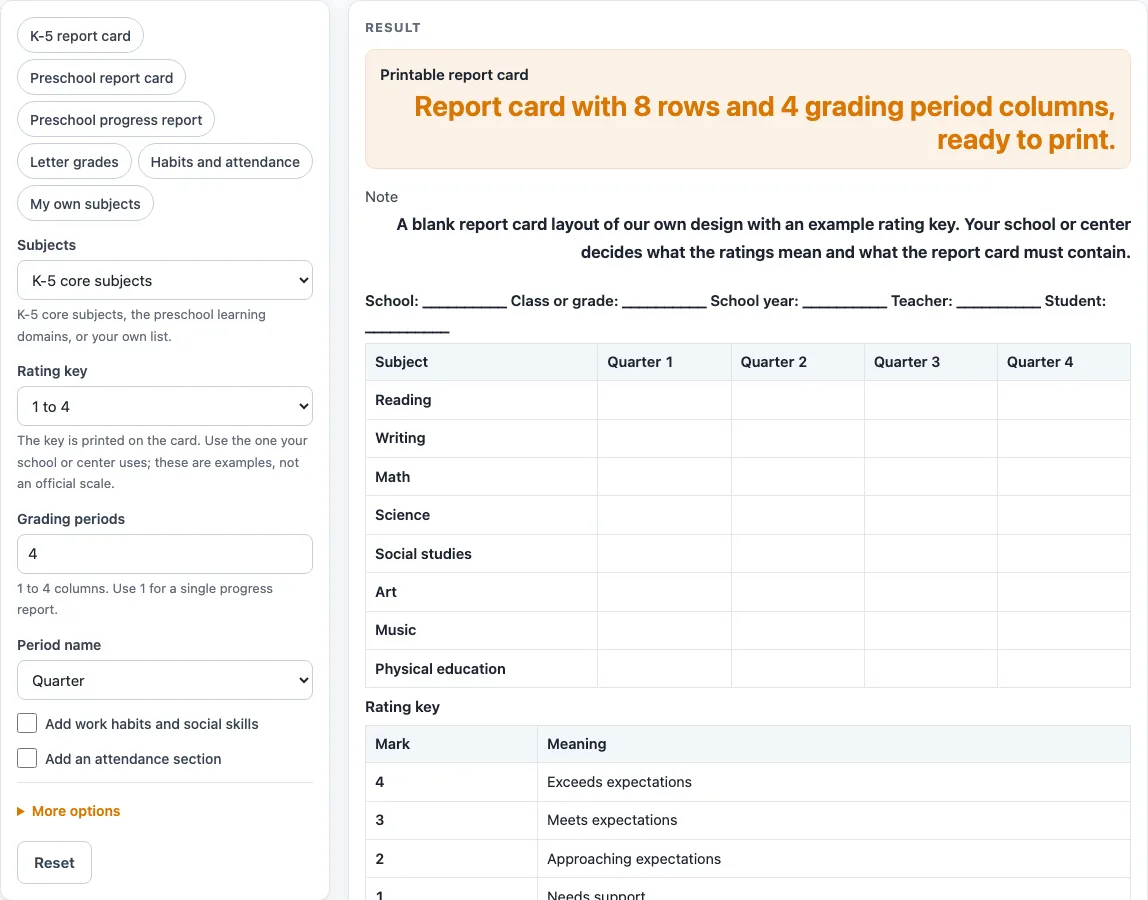
Choose the subjects, the number of grading periods and a rating key, then print a blank report card or progress report with comment and signature lines.
How to use the Report Card Template
- Pick a preset chip if one fits, such as “K-5 report card” or “Preschool progress report”.
- Under “Subjects”, choose K-5 core subjects (the default), “Preschool learning domains” or “My own list”. For your own list, type one subject or skill per line, up to 24 lines.
- Set “Grading periods” from 1 to 4 (the default is 4), then pick a “Period name”: Quarter (default), Trimester, Term, Semester or Period. With 1 period, the column is headed “Rating”, which makes a single progress report.
- Choose a “Rating key”: 1 to 4, E, S, N, Letter grades, or Not yet, Emerging, Secure. The key prints under the table.
- Turn on “Add work habits and social skills” (6 rows) or “Add an attendance section” (days absent and days tardy) if you need them. Both are off by default.
- Under More options, fill in “School or center”, “Class or grade”, “School year” and “Teacher”, or leave them blank to write by hand. The heading always ends with “Student: __________”.
- Set “Comment lines” from 0 to 8 (the default is 4). Keep “Signature lines” on for a teacher and a parent or guardian, or turn it off.
- Read any message. A warning appears when subject and habit rows together exceed 18, because the sheet may not fit on one printed page.
- Print the sheet, or use the CSV download button to save the heading, columns and blank cells as a .csv file.
Header text you type is kept in the page address after “?s=”.
What is a report card template?
A report card template is a layout that sets out the parts a report card usually needs, with the details left blank for you to fill in. This one has a heading, a table of subject or skill rows, one rating column for each grading period, a rating key, comment lines and signature lines. The layout and wording are the tool’s own design, so the sheet is a starting point rather than a finished form.
The rows depend on what you are rating. For K-5 classes, the default rows are Reading, Writing, Math, Science, Social studies, Art, Music and Physical education. For younger children, the “Preschool learning domains” set uses seven domain headings from the Head Start Early Learning Outcomes Framework (Office of Head Start, 2015): Approaches to Learning; Social and Emotional Development; Language and Communication; Literacy; Mathematics Development; Scientific Reasoning; and Perceptual, Motor, and Physical Development. The page does not claim the card is an official Head Start form. “My own list” lets you type any subjects or skills, one per line.
How do grading periods and rating keys work on a report card?
Grading periods split the school year into parts, and each part gets its own rating column. The tool offers 1 to 4 columns, named Quarter, Trimester, Term, Semester or Period, such as “Quarter 1” to “Quarter 4”. Four quarters is the default. A single column headed “Rating” turns the sheet into a progress report that records one rating.
The rating key explains what each mark means. It prints under the table as a Mark / Meaning table. The tool offers several sets: 1 to 4 (4 Exceeds expectations, 3 Meets expectations, 2 Approaching expectations, 1 Needs support); E, S, N (Excellent, Satisfactory, Needs improvement); letter grades A, B, C, D and F with short descriptions; and Not yet, Emerging, Secure (NY, E, S). These are examples. The school or center decides what each rating means, so match the key to your own system before you print.
The tool does not decide how a student is rated. It lays out the blank cells. Ratings, comments and signatures are added by hand or in a spreadsheet after you download the CSV.
Sources (checked 15 October 2026): headstart.gov
Worked examples
| Input | Result |
|---|---|
| K-5 core subjects, 1 to 4, 4 periods | 8 rows, 5 columns |
| Preschool learning domains, Not yet, Emerging, Secure, 3 periods | 7 rows, 4 columns |
| Preschool learning domains, Not yet, Emerging, Secure, 1 periods | 7 rows, 2 columns |
| K-5 core subjects, Letter grades, 4 periods | 14 rows, 5 columns |
| My own list, 1 to 4, 4 periods | 4 rows, 5 columns |
Calculated by the tool above; open it with the same values to see each step.
Frequently asked questions
Can I type a student’s name into the template?
No. The heading always ends with “Student: __________”, which you write by hand on the printed sheet. There is no field for a child’s name.
Is this an official Head Start form?
No. The preschool domain headings come from the Head Start Early Learning Outcomes Framework, but the page does not claim the card is an official Head Start form. The layout and wording are the tool’s own design.
Does the template meet school or licensing rules?
The page is a general-purpose template. The school or center decides what the ratings mean and what a report card must contain. Check your local requirements before you use a printed sheet.
What is the difference between a preschool report card and a preschool progress report?
The “Preschool report card” preset uses the preschool domains, 3 terms, the NY, E, S key and 5 comment lines. The “Preschool progress report” preset uses 1 period, which gives a single “Rating” column, and 6 comment lines.
Is my information saved anywhere?
Everything runs in your browser. Nothing is saved or uploaded, and no sign-up is needed. Text typed into the header stays in the page address after “?s=”.
Can I open the result in a spreadsheet?
Yes. Select “Download as CSV” to save the heading, columns and blank cells as a .csv file that opens in a spreadsheet.
Related tools
- End of Year Report Card Comments: Use it when you are writing closing comments for the last grading period.
- Report Card Comments for Kindergarten: Use it when you need comment wording for kindergarten students.
- Report Card Comments: Use it when you need comment wording for any grade level.
- Final Grade Calculator: Use it to work out a final grade from the numbers you enter.
- Test Score Calculator: Use it to calculate a test score from the numbers you enter.
- Weighted Grade Calculator: Use it when different assignments or categories carry different weights.