Reward Chart
List the tasks or choose numbered circles, set the goal and reward, then print a reward chart or sticker chart printable.
How to use the reward chart builder
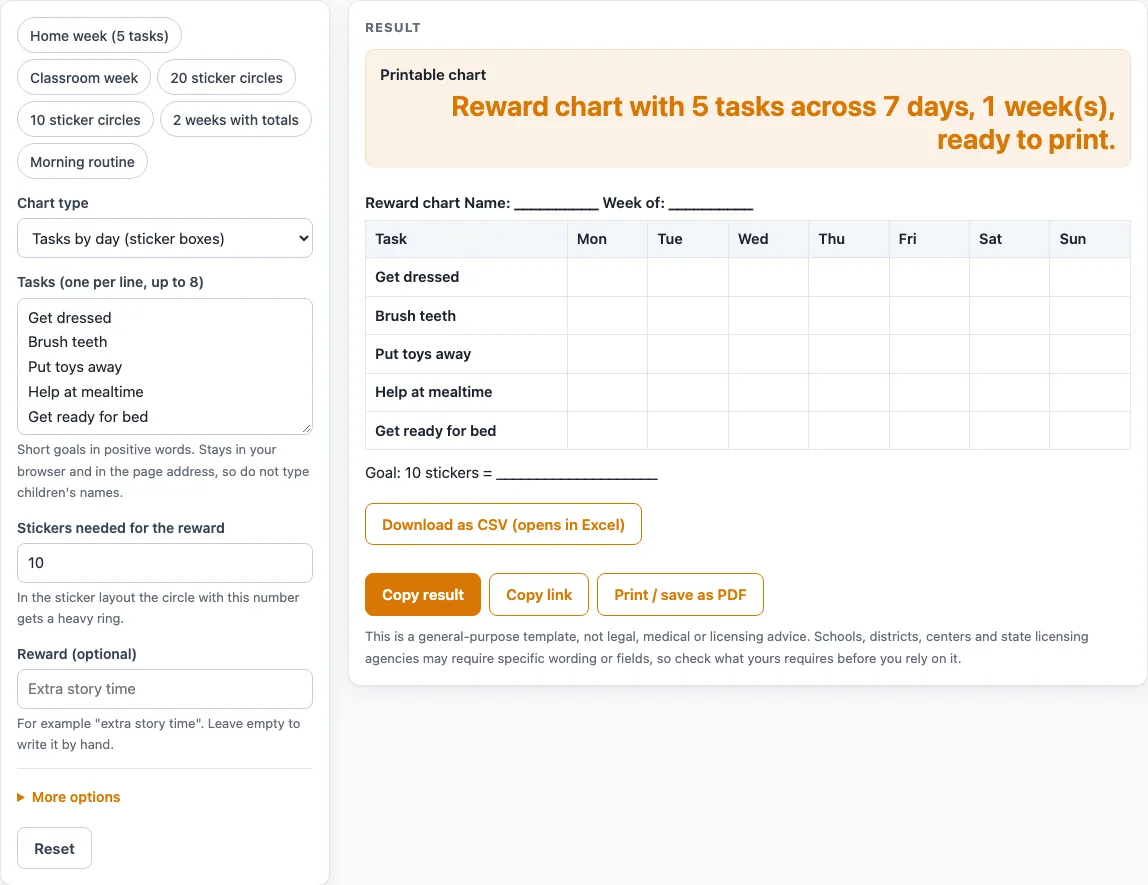
- Under “Chart type”, pick “Tasks by day (sticker boxes)” for a grid, or “Numbered sticker circles” for a sticker chart.
- For the grid, type one task per line in “Tasks (one per line, up to 8)”. The default list has 5 tasks; replace them with your own.
- Under More options, “Include Saturday and Sunday” is on by default (Mon-Sun). Switch it off for Mon-Fri. “Add a Total column” is off by default, and “Number of weeks” takes 1 to 4.
- For circles, set “Number of circles” (1 to 60, default 20) and, under More options, “Circles per row” (3 to 10, default 5).
- Set “Stickers needed for the reward”. The default is 10. In the circle layout, the circle with that number gets a heavy ring.
- Type a “Reward (optional)” or leave it blank to write it by hand. The line under the chart reads “Goal: N stickers = reward”.
- Under “Used at”, choose Home to show Name and Week of in the heading, or School or classroom to show Name and Class or room.
- Check any warning. In the grid, a goal higher than the number of boxes in one weekly chart (tasks times days) warns you. In the circle layout, a goal higher than the number of circles does.
- Print the chart with “Print / save as PDF”.
The preset chips “Home week (5 tasks)”, “Classroom week”, “20 sticker circles”, “10 sticker circles”, “2 weeks with totals” and “Morning routine” load a starting setup.
What is a reward chart and how does it work?
A reward chart is a sheet where a person marks each completed task or earned sticker, so progress can be seen at a glance. Each box or circle stands for one thing to finish, and the marks show what has been done so far. The chart does not decide what counts as done; the adult sets the tasks, the days and the goal before printing.
On this tool, the grid layout called “Tasks by day (sticker boxes)” lists tasks down the left side and days across the top. Each cell is an empty box to mark once per task per day. You can type up to 8 tasks, one per line, and the default list has 5. The grid uses 7 days (Mon-Sun) unless you switch off “Include Saturday and Sunday”, which gives Mon-Fri.
The number of boxes follows a simple multiplication: tasks times days. With 5 tasks and 7 days, one weekly chart has 5 × 7 = 35 boxes. “Add a Total column” adds one more column but does not change the number of boxes. “Number of weeks” prints 1 to 4 weekly charts; when you ask for more than one, each is titled “Week n of N”. A value above the limit is cut, with a warning.
Worked example: the default gives 1 table, 8 columns (Task plus Mon-Sun), 5 rows and 35 boxes. The layouts are our own design, and this page makes no claim about the effect of rewards.
How does a sticker goal set up the chart?
A sticker goal sets how many stickers must be earned before the reward is given, and the chart shows that target clearly. In “Numbered sticker circles”, the sheet has 1 to 60 circles (default 20) in rows of 3 to 10 (default 5). Each circle carries a number. The circle whose number equals the goal gets a heavy ring, so the target is easy to spot.
The goal line printed under the chart reads “Goal: N stickers = reward”. The default N is 10, with a blank line for the reward. You can type the reward text in “Reward (optional)”, or leave the line blank and write it in by hand after printing.
Goal limits matter. In the grid, a goal higher than the number of boxes in one weekly chart triggers a warning, because one week cannot reach it. In the circle layout, a goal higher than the number of circles triggers a warning, because no circle is marked as the goal. Choose a goal that fits the chart you print.
Worked example: the “20 sticker circles” preset gives 20 circles in 4 rows of 5, with circle 20 marked as the goal.
Worked examples
| Input | Result |
|---|---|
| 5 tasks, 1 week(s) | 35 boxes per week, goal 10 |
| 5 tasks, 1 week(s) | 25 boxes per week, goal 12 |
| 20 circles | goal circle 20 |
| 5 tasks, 2 week(s) | 35 boxes per week, goal 10 |
Calculated by the tool above; open it with the same values to see each step.
Frequently asked questions
Is this reward chart free to use?
Yes. It runs in your browser, needs no sign-up, and is free to use. Nothing you enter is saved or uploaded.
How do I make a sticker chart printable?
Under “Chart type”, choose “Numbered sticker circles”, then set the number of circles and, under More options, the circles per row. Set the goal, and press “Print / save as PDF”. Write names by hand on the printed sheet.
Can I type a child’s name into the chart?
No. There is no field for a child’s name. Home shows a Name line and “Week of” in the heading, and School or classroom shows Name and Class or room, so you write the name by hand after printing.
Why did I see a warning about my goal?
In the grid, the goal is higher than the number of boxes in one weekly chart (tasks times days), so one week cannot reach it. In the circle layout, the goal is higher than the number of circles, so no circle is marked as the goal. Lower the goal, or add tasks, days or circles.
Can I download my chart as a CSV file?
The CSV download is made for the grid layout and is created in your browser. The circle layout is a drawing for printing, so use “Print / save as PDF” for it.
How many weekly charts can I print at once?
“Number of weeks” takes 1 to 4. With more than one week, each chart is titled “Week n of N”. A larger value is cut to 4, with a warning.
Related tools
- Behavior Chart: Use it when you want to track behavior across a day or week rather than task completion.
- Behavior Clip Chart: Use it when you want a visual where a clip moves to show a student’s current level.
- Classroom Jobs Chart: Use it to list classroom jobs and rotate who does each one.
- Potty Training Chart: Use it to track a toilet routine day by day.
- Behavior Log: Use it to record behavior events with dates and notes.
- ABC Behavior Chart: Use it to note what happened before a behavior, the behavior itself, and what followed.
- Behavior Contract Template: Use it when you want a written agreement with clear expectations.
- Behavior Reflection Sheet: Use it when a student needs a written think sheet about a behavior.