Teacher Lesson Plan Book
Set the number of weeks and name your periods or subjects, add the first Monday if you want the dates filled in, and print plan book pages with room to write.
How to use the Teacher Lesson Plan Book
- Enter a date in “First week starts on” if you want dates in each week row. Use a Monday, such as 2026-08-24. A date that is not a Monday moves back to the Monday of its week, and a warning tells you so.
- Set “Number of weeks” from 1 to 40. The default is 4.
- Under More options, set “Weeks per page” to 1 week or 2 weeks. The default is 2.
- In “Periods or subjects (one per line)”, type up to 10 names, one per line. The default is Period 1 to Period 6.
- Under More options, set “Writing lines per period” from 1 to 3. The default is 2.
- Type your name in “Teacher” and the class in “Class or subject”. Both print in the heading.
- Read any warning that appears under the result, such as the long-page warning for a page with more than 28 rows.
- Print the page from your browser. Each group of weeks starts on its own printed page.
Preset chips such as “School year (36 weeks)”, “Subjects as rows” and “Elementary day” fill in the settings for you, and you can edit them afterward. The CSV download button saves each page’s table as a .csv file for a spreadsheet. Your settings are kept in the page address, so you can return to the same plan later.
How does a teacher lesson plan book lay out the weeks?
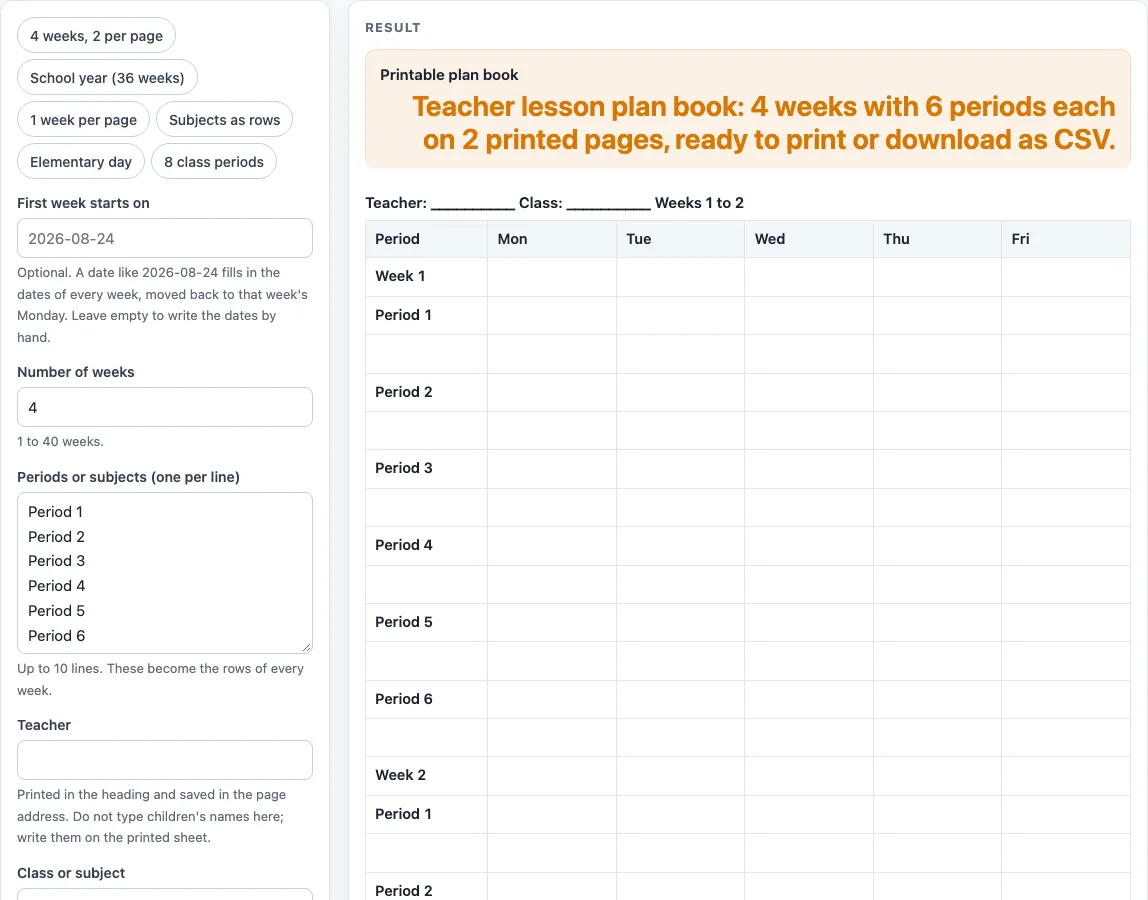
Each page is one table with the columns Period, Mon, Tue, Wed, Thu and Fri. Every week inside that table starts with a “Week n” row, followed by one block of rows for each period.
The row count follows a simple formula: each week uses 1 row plus one row for every writing line of every period. With the default settings of 6 periods and 2 writing lines, one week takes 1 + 6 × 2 = 13 rows, and a page of 2 weeks takes 26 rows. Four weeks at 2 per page make 2 pages. If the number of weeks is odd, the last page holds a single week and is titled “Week n” instead of a range.
How do the dates in a teacher lesson plan book work?
When you enter a start date, each week row shows the five school days as month and day. A start of 2026-08-24 gives Week 1 as 08/24 to 08/28, Week 2 as 08/31 to 09/04, and Week 9 as starting 10/19. Dates roll over correctly between months, years and February 29.
If the date is not a Monday, it is moved back to the Monday of its week. If the date is not real, such as 2026-02-30, a warning appears and the dates stay empty so you can write them by hand.
Why do the limits and warnings matter for planning?
The tool keeps your settings within fixed limits so the printed pages stay usable. Weeks above 40 are cut to 40, and periods above 10 are cut to 10. Each cut comes with a warning. Zero weeks or an empty period list gives an error instead of a page. Writing lines above 3 are cut to 3.
Length is the main limit to watch. A page with more than 28 rows gets a long-page warning. For example, 2 weeks with 6 periods and 3 writing lines makes 38 rows. To bring that down, use 1 week per page (19 rows) or 2 lines per period (26 rows).
Is this a teacher planner template or a full planner?
This tool is a lesson planner only. It creates weekly lesson rows and writing space, but it has no calendar, grade book or attendance tracking. The layout is our own design, so check what your school or district requires before you rely on it.
Worked examples
| Input | Result |
|---|---|
| 4 weeks | 52 rows, 6 columns |
| 9 weeks | 117 rows, 6 columns |
| 4 weeks | 76 rows, 6 columns |
| 4 weeks | 36 rows, 6 columns |
Calculated by the tool above; open it with the same values to see each step.
Frequently asked questions
Is this teacher lesson plan book free to use?
Yes. It is free, runs in your browser, and needs no sign-up. Nothing you type is saved or uploaded.
Can I use it as a teacher planner template?
Yes, for weekly lesson planning. It is a lesson planner only, with no calendar, grade book or attendance.
Can I type a student’s name into the page?
No. The page has no field for a child’s name. The only typed text is the start date, teacher, class and the period names, so write children’s names on the printed sheet.
How do I get my plan into a spreadsheet?
Use the CSV download button. It saves every page’s table as a .csv file that you can open in a spreadsheet.
Is this an official plan book form?
No. The layout is our own design. Check what your school or district requires before you use it for official records.
Why do I see a long-page warning?
A page with more than 28 rows gets this warning. Choose 1 week per page, or reduce the number of periods or the writing lines per period, to shorten it.
Can I come back to the same plan book later?
The tool does not store anything. Your settings are kept in the page address, so bookmarking that address returns to the same setup. Check the address before you share it, because the teacher and class text is part of it.
Related tools
- Daily Lesson Plan Template: Use it when you need a single day of lesson planning rather than a full week.
- Kindergarten Lesson Plan Template: Use it when you plan for kindergarten classes.
- Lesson Plan Template: Use it when you want a general lesson plan layout.
- Preschool Lesson Plan Template: Use it when you plan for preschool groups.
- Preschool Schedule: Use it when you want to lay out a daily routine for preschool.
- Preschool Visual Schedule: Use it when you want a picture-based daily schedule for preschool.
- Weekly Lesson Plan Template: Use it when you want a one-week lesson plan.