Weighted Grade Calculator
Type one line per category with its score and weight, and choose what to do with missing work. You get the weighted average, the letter grade and what each category adds.
How to use the Weighted Grade Calculator
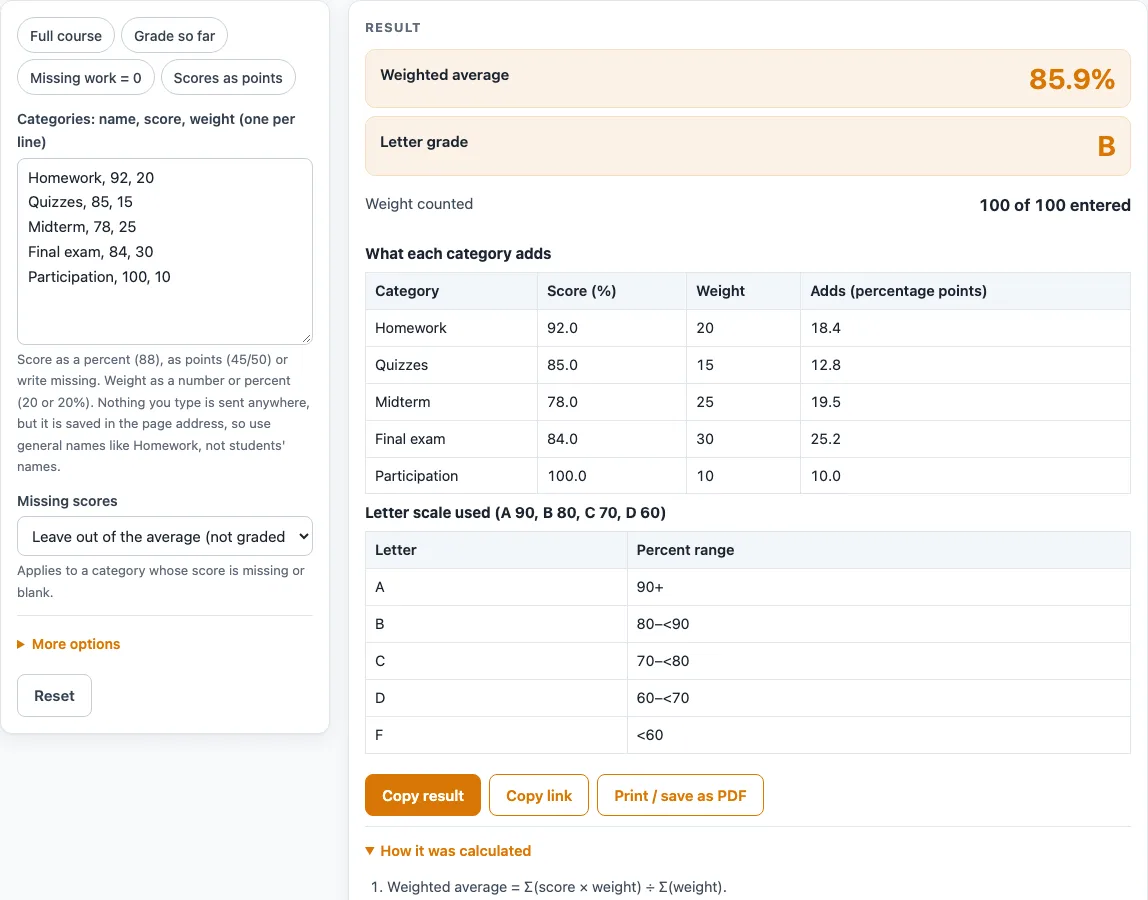
- Type one category per line in the form name, score, weight. For example: Homework, 92, 20.
- Enter the score as a percent (88 or 88%), as points (45/50), or as the word missing. Blank, -, n/a and none also count as missing.
- Enter the weight as a number or a percent (20 or 20%). You can enter up to 40 categories.
- To skip typing, pick a preset: “Full course”, “Grade so far”, “Missing work = 0” or “Scores as points”.
- Under “Missing scores”, choose “Leave out of the average (not graded yet)” (the default) or “Count as zero”.
- Under More options, “If weights do not add up to 100” lets you keep “Average of the weights entered” (the default) or choose “Points toward a 100-point course”, which counts the unfinished part as zero.
- Under “Show percents rounded to”, choose a whole number, 1 or 2 decimals, or up to 4 decimals.
- Choose a “Letter-grade scale”, plain or with plus and minus.
- Read the “Weighted average”, “Letter grade” and “Weight counted”, the table “What each category adds” and the steps.
Lines that start with # and blank lines are ignored, so you can use them for notes. The text you type is written into the page address after ?s=, so use general category names.
How are weighted grades calculated?
A weighted grade gives each category a share of the final result based on its weight. The calculator multiplies each score by its weight, adds those products together, and divides by the total of the weights.
The formula is weighted average = Σ(score × weight) ÷ Σ(weight), with weights and scores both in percent. A points score such as 45/50 is first turned into a percent (45 ÷ 50 = 90%).
How do you calculate grades that are weighted?
Work through the categories one at a time. Take each score as a percent, multiply it by its weight, and write down the product. Add the products, then divide by the sum of the weights.
Using the default example: Homework 92 at 20 gives 1840; Quizzes 85 at 15 gives 1275; Midterm 78 at 25 gives 1950; Final exam 84 at 30 gives 2520; Participation 100 at 10 gives 1000. The products add to 8585 and the weights add to 100, so 8585 ÷ 100 = 85.85%. Shown with one decimal, that is 85.9%, which is a B on the plain scale.
How to calculate grade with weights before the course ends?
Use only the categories that have been graded. In the “Grade so far” example, Homework 92 at 20, Quizzes 85 at 15 and Midterm 78 at 25 have weights that total 60. The products are 1840 + 1275 + 1950 = 5065, and 5065 ÷ 60 = 84.4167%, shown as 84.42% at 2 decimals.
By default, the division uses the weights you entered, so the result is the average of the graded part. If you choose “Points toward a 100-point course” under “If weights do not add up to 100”, the division uses 100 instead. The unfinished 40% then counts as zero so far, giving 5065 ÷ 100 = 50.65%, which is an F.
What does a missing score change?
A missing score is treated as a category with no result yet. Under “Missing scores”, “Leave out of the average” removes that category from both the sum of products and the total of the weights.
Take Tests 45/50 at 60, Projects 88% at 30, and Homework missing at 10. Tests is 90%, so 90 × 60 = 5400, and Projects gives 88 × 30 = 2640. The products total 8040. Counting Homework as zero divides by 100, giving 8040 ÷ 100 = 80.4%, a B. Leaving it out divides by 90, giving 8040 ÷ 90 = 89.33%, also a B. The two results differ because the second one does not penalize the missing work.
How is the letter grade chosen?
The letter comes from the unrounded percent, not the rounded number on screen. Rounding only changes what is displayed, using half-up rounding, and it does not change the letter.
The plain scale is A 90, B 80, C 70, D 60, and anything below that is F. The plus and minus scale is A+ 97, A 93, A- 90, B+ 87, B 83, B- 80, C+ 77, C 73, C- 70, D+ 67, D 63 and D- 60. These are common US examples only, and the scale your school or instructor uses may be different.
Sources (checked 15 October 2026): gpacalculator.net
Worked examples
| Input | Result |
|---|---|
| 5 categories with weights | Weighted average 85.9%, letter B |
| 3 categories with weights | Weighted average 84.4%, letter B |
| 3 categories with weights | Weighted average 80.4%, letter B |
| 3 categories with weights | Weighted average 81.85%, letter B- |
Calculated by the tool above; open it with the same values to see each step.
Frequently asked questions
How to calculate grade with weights with removing missing assignments?
Set “Missing scores” to “Leave out of the average (not graded yet)”, which is the default. The missing category’s weight then drops out of the division. In the example above, that gives 8040 ÷ 90 = 89.33%.
Does the calculator drop the lowest score?
No. Dropping the lowest score is not offered, so list only the categories you want counted.
What happens if my weights add up to less than 100?
The result is the average of what you entered, and a warning appears. If you want the unfinished part to count as zero, choose “Points toward a 100-point course” under “If weights do not add up to 100”.
What if my weights add up to more than 100?
A warning appears. Check whether one category is entered twice, because that would double-count it.
Can I enter scores as points?
Yes. Enter a score such as 45/50, or pick the “Scores as points” preset. A score above 100% is used as typed, so it counts as extra credit. A weight of 0 changes nothing.
Why do I get an error message?
The tool reports an error when there are no categories, when a line has no score or weight, when a score is not a number, when a points score has 0 possible, when a weight is not a number or is negative, or when no category has a weight above zero.
Is the information I type saved?
No. Nothing is uploaded, but what you type is kept in the page address after ?s=. Use general category names such as Homework or Quizzes, not students’ names.
Related tools
- Final Grade Calculator: Use it when you want to work out the grade needed on a final exam or last assignment.
- Test Score Calculator: Use it when you need to turn a raw test result into a percent before adding it to a course total.
- Report Card Comments: Use it when you are writing general comments to go alongside a grade on a report card.
- End of Year Report Card Comments: Use it when you are writing end-of-year comments once the final grades are set.
- Report Card Comments for Kindergarten: Use it when you are writing comments for kindergarten report cards rather than grades.
- Report Card Template: Use it when you want a general layout to put your grades and comments on.